<?xml version="1.0" encoding="utf-8"?>
<feed xmlns="http://www.w3.org/2005/Atom">
    <id>https://www.kaino3.com</id>
    <title>硝酸凯部落格</title>
    <updated>2024-01-31T10:54:54.236Z</updated>
    <generator>https://github.com/jpmonette/feed</generator>
    <link rel="alternate" href="https://www.kaino3.com"/>
    <link rel="self" href="https://www.kaino3.com/atom.xml"/>
    <subtitle>一个孤独的人</subtitle>
    <logo>https://www.kaino3.com/images/avatar.png</logo>
    <icon>https://www.kaino3.com/favicon.ico</icon>
    <rights>All rights reserved 2024, 硝酸凯部落格</rights>
    <entry>
        <title type="html"><![CDATA[用api把cloudflare的证书换成自家一年的]]></title>
        <id>https://www.kaino3.com/20230629/</id>
        <link href="https://www.kaino3.com/20230629/">
        </link>
        <updated>2023-06-29T07:52:43.000Z</updated>
        <content type="html"><![CDATA[<p>cloudflare目前的话提供了四种证书，一种是自家一年的，还有let's的，谷歌的，都是三个月的，还有setcigo的三个月的，但是怎么没见到，之前的话一直都是一年的证书，现在基本上都是三个月的，主要是let's和谷歌的两种,，其实我们可以利用api来切换这，参考cloudflare的文档里的certificate authority<br>
<a href="https://developers.cloudflare.com/ssl/reference/certificate-authorities/">https://developers.cloudflare.com/ssl/reference/certificate-authorities/</a><br>
来切换四种证书，其实也可以完全不管，因为都是自动签的，let's的证书的话可能会导致部分旧平台，比方说旧安卓手机和win7的电脑兼容性不好，还有国产的360浏览器不把它添加进信任列表,所以切不切其实看你自己了<br>
下面介绍两种办法来切证书，其实都是发起api来的，本质上一样的，只是第一种稍微简单点<br>
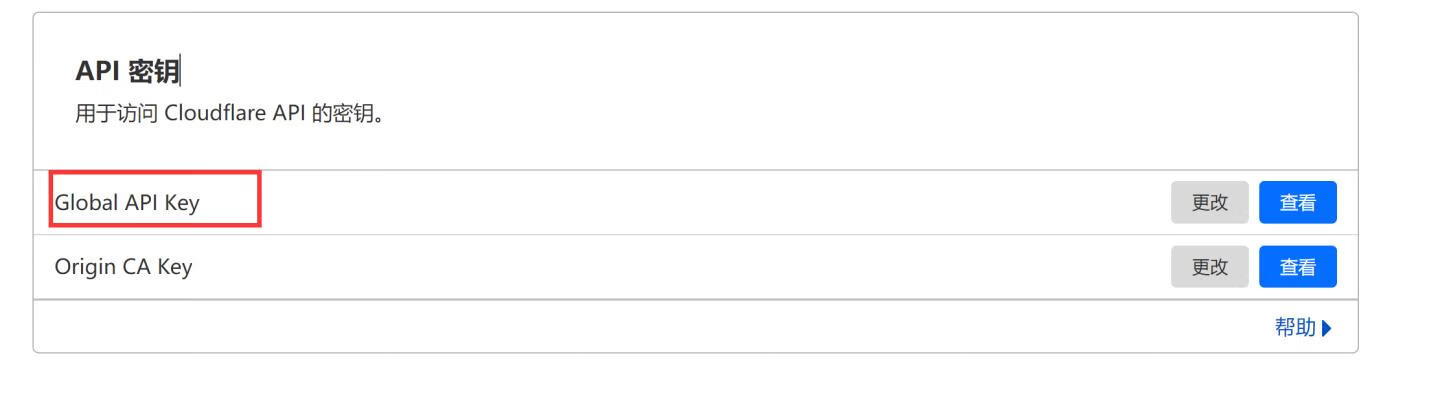
首先都要申请global api key<br>
<a href="https://dash.cloudflare.com/profile/api-tokens">https://dash.cloudflare.com/profile/api-tokens</a><br>
<img src="https://img10.360buyimg.com/ddimg/jfs/t1/114283/29/33261/14822/64cc1932Faf7ea228/66621891be03516d.jpg" alt="img" loading="lazy"><br>
第一种方法<br>
dnsfalre，这个是我之前用来修改以前cfp的cname接入的域名时候发现的，具体怎么玩可以参考这个大佬的博客<a href="https://luotianyi.vc/6415.html">https://luotianyi.vc/6415.html</a>,可以自己部署，我们这次只是用来修改证书<br>
作者github的项目地址<a href="https://github.com/5aaee9/Dnsflare">https://github.com/5aaee9/Dnsflare</a><br>
我们直接用作者的演示站就行了，是本地浏览器发起api请求的<br>
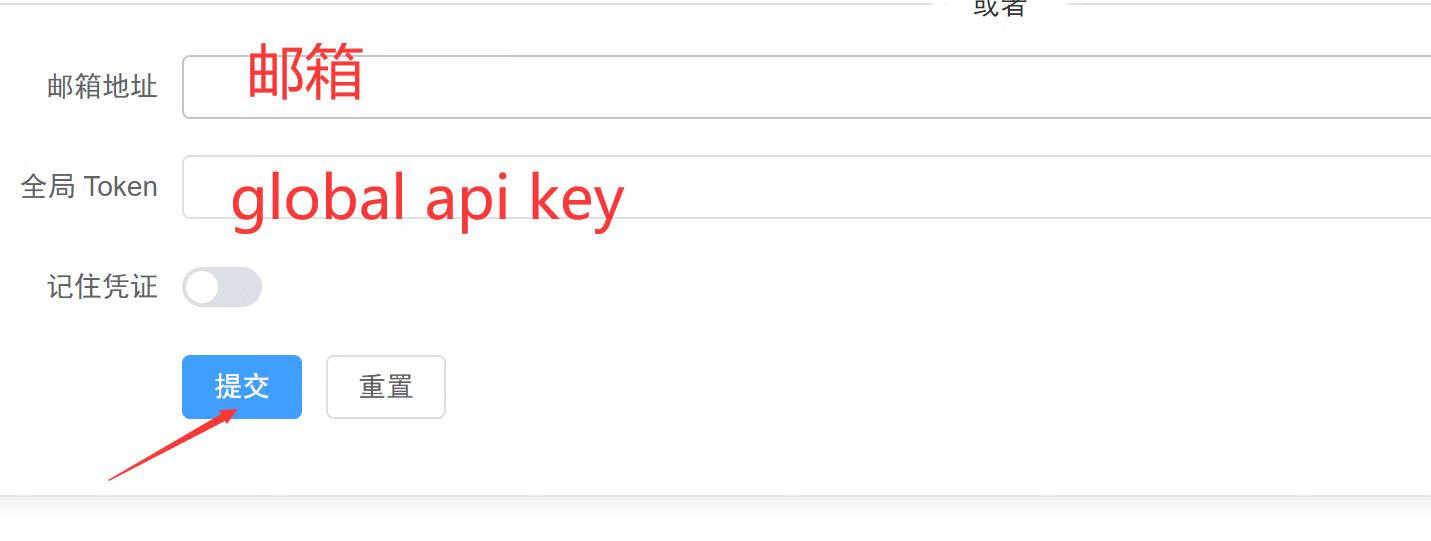
打开<a href="https://dnsflare-indexyz.vercel.app/">https://dnsflare-indexyz.vercel.app/</a>，<br>
输入你的邮箱和global api key<br>
点击提交登录<br>
<img src="https://img10.360buyimg.com/ddimg/jfs/t1/184435/18/36104/21120/64cc1946Fbc1c4a85/1589e7eaf6b41fee.jpg" alt="img" loading="lazy"><br>
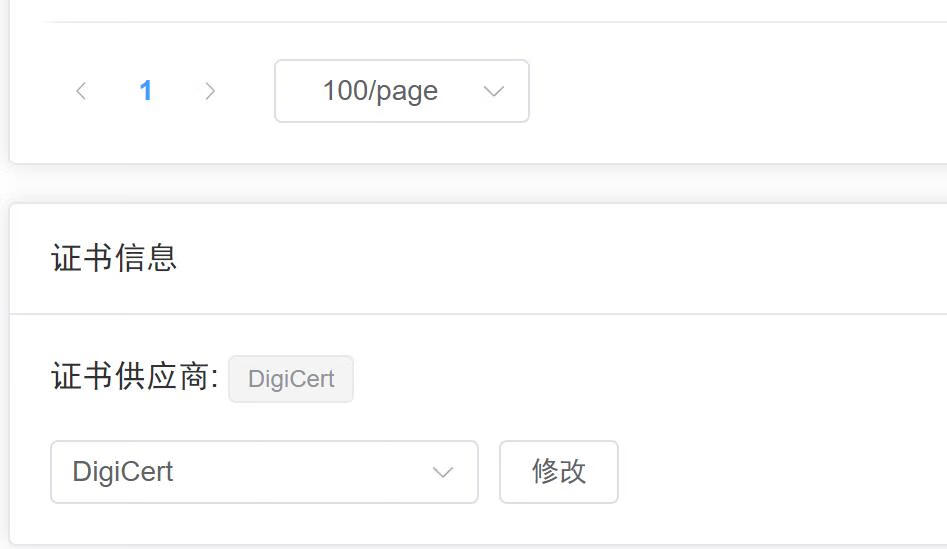
选择你的域名<br>
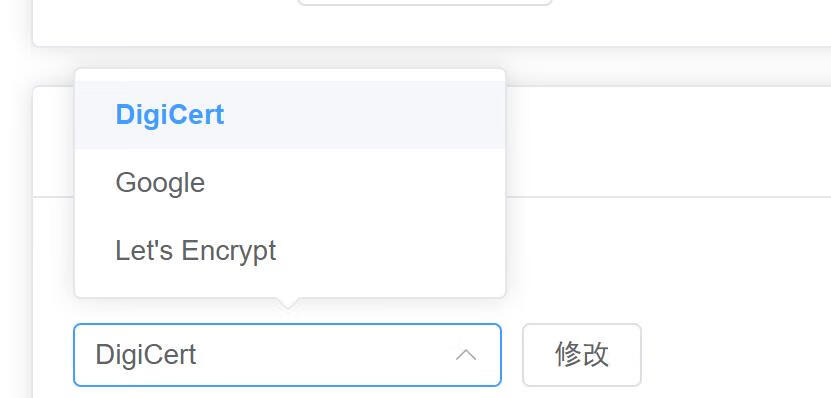
点击下面的证书供应商，就可以切换你的域名的证书了，选择digicert就是cf自家的一年的了，let's和谷歌的话就是三个月的，有cf自家当然选cf自家的了<br>
<img src="https://img10.360buyimg.com/ddimg/jfs/t1/99576/40/38320/11881/64cc1958Fc3bb6500/2471df6cf03018ac.jpg" alt="img" loading="lazy"><br>
<img src="https://img10.360buyimg.com/ddimg/jfs/t1/171496/25/39123/9801/64cc19c2F1f5cdc87/a789e3ca4ce37107.jpg" alt="img" loading="lazy"><br>
这时候我们去cf的后台，就可以看到cf的自家的一年证书已经签发了<br>
<img src="https://img10.360buyimg.com/ddimg/jfs/t1/200251/17/32450/26023/64cc19aeF3d5a985c/4b0f001deb78031f.jpg" alt="img" loading="lazy"></p>
<p>第二种，<br>
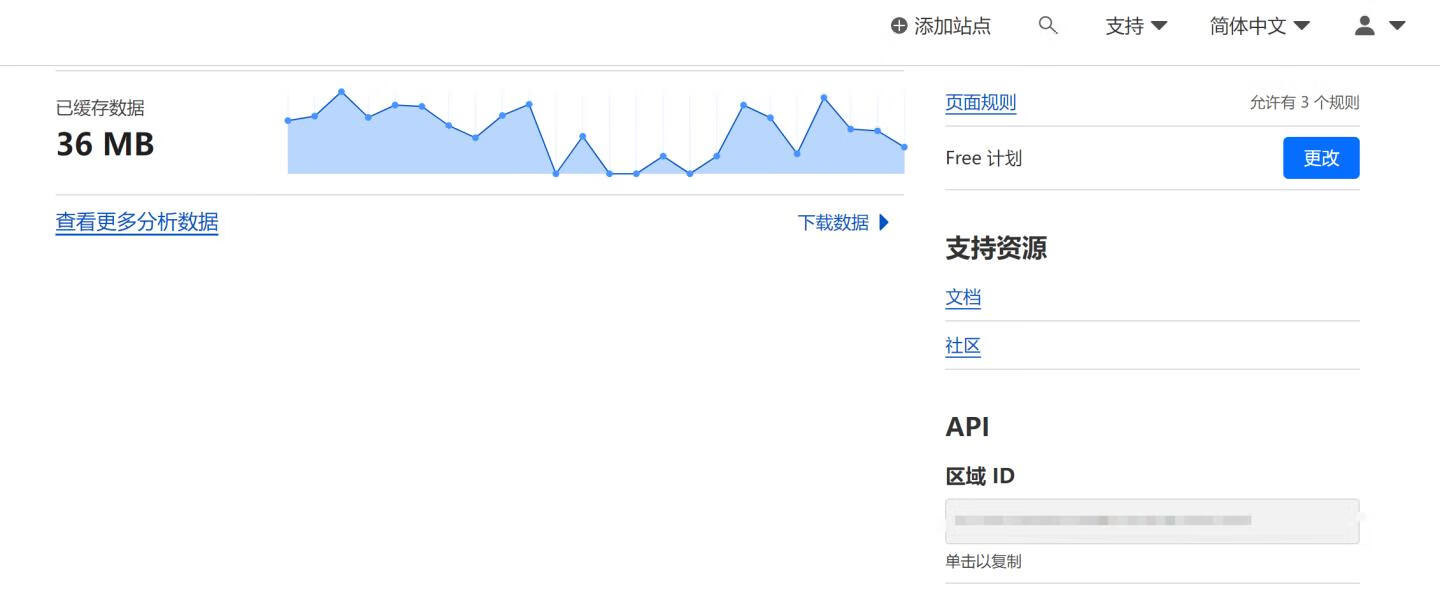
打开cf你的域名，域名那边有个域名区域id，要用的<br>
<img src="https://img10.360buyimg.com/ddimg/jfs/t1/127720/39/35050/26542/64cc19a0F4d91cc29/349c8597494a27e4.jpg" alt="img" loading="lazy"><br>
然后在小鸡的ssh上打下面的命令</p>
<pre><code>curl -sX PATCH &quot;https://api.cloudflare.com/client/v4/zones/你的域名区域id/ssl/universal/settings&quot; -H &quot;X-Auth-Email:你的邮箱&quot; -H &quot;X-Auth-Key:你的global api key&quot; -H &quot;Content-Type: application/json&quot; --data &quot;{\&quot;certificate_authority\&quot;:\&quot;digicert\&quot;}&quot;
</code></pre>
<p>换成谷歌的话就把digicert换成google</p>
<pre><code>curl -sX PATCH &quot;https://api.cloudflare.com/client/v4/zones/你的域名区域id/ssl/universal/settings&quot; -H &quot;X-Auth-Email:你的邮箱&quot; -H &quot;X-Auth-Key:你的global api key&quot; -H &quot;Content-Type: application/json&quot; --data &quot;{\&quot;certificate_authority\&quot;:\&quot;google\&quot;}&quot;
</code></pre>
<p>换成let's的digicert 为 lets_encrypt</p>
<pre><code>curl -sX PATCH &quot;https://api.cloudflare.com/client/v4/zones/你的域名区域id/ssl/universal/settings&quot; -H &quot;X-Auth-Email:你的邮箱&quot; -H &quot;X-Auth-Key: 你的global api key&quot; -H &quot;Content-Type: application/json&quot; --data &quot;{\&quot;certificate_authority\&quot;:\&quot;lets_encrypt\&quot;}&quot;
</code></pre>
<p>如果出现以下结果的话，就是成功了</p>
<pre><code>{&quot;result&quot;:{&quot;enabled&quot;:true,&quot;certificate_authority&quot;:&quot;lets_encrypt&quot;},&quot;success&quot;:true,&quot;errors&quot;:[],&quot;messages&quot;
</code></pre>
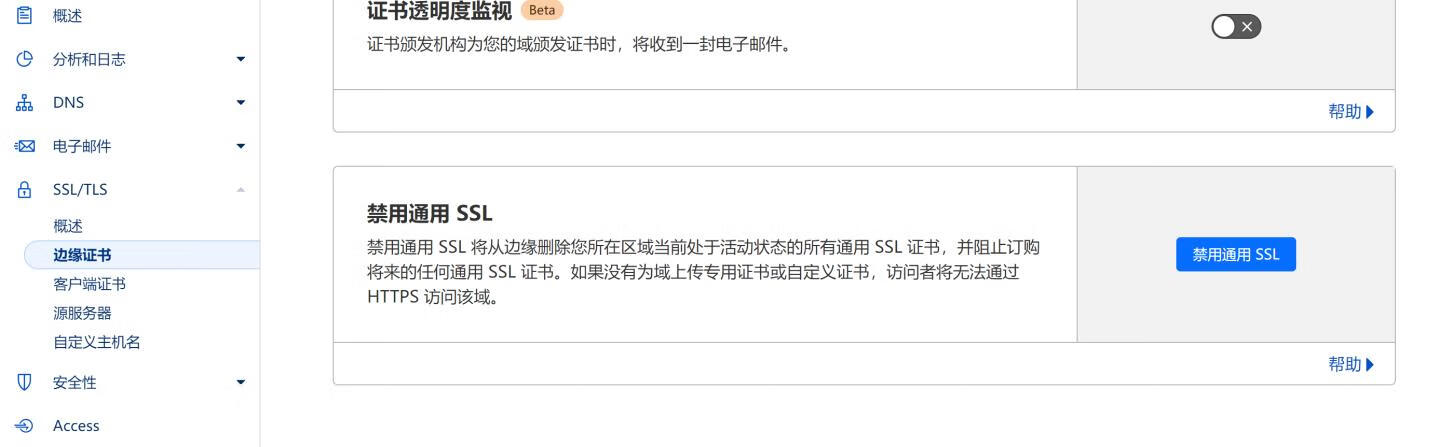
<p>如果没反应的话，打开cf的控制台，禁用通用ssl，然后再打命令，然后再启用，反复多试几次就行了<br>
<img src="https://img10.360buyimg.com/ddimg/jfs/t1/167523/11/39568/38752/64cc1919F5cf7642d/2b3e8a2e2ab330b9.jpg" alt="img" loading="lazy"></p>
]]></content>
    </entry>
    <entry>
        <title type="html"><![CDATA[那些免费证书]]></title>
        <id>https://www.kaino3.com/20230627/</id>
        <link href="https://www.kaino3.com/20230627/">
        </link>
        <updated>2023-06-26T18:29:58.000Z</updated>
        <content type="html"><![CDATA[<p>1   一年的单域名的证书<br>
都是国内云厂商提供的，都是要实名的<br>
第一个是华为云和阿里云的encryption everywhere</p>
<p>华为云的怎么申请看这里<br>
<a href="https://www.huaweicloud.com/zhishi/sslfree.html">https://www.huaweicloud.com/zhishi/sslfree.html</a><br>
阿里云的<a href="https://developer.aliyun.com/article/875508">https://developer.aliyun.com/article/875508</a><br>
trust asia的，腾讯，宝塔，ucloud,青云，好像还有几个，<br>
但是记得，同一主域最多只能申请20张<br>
腾讯<a href="https://console.cloud.tencent.com/ssl">https://console.cloud.tencent.com/ssl</a>,有个免费证书，点进去<br>
宝塔直接在面板里就有<br>
ucloud <a href="https://console.ucloud.cn/ussl/Free">https://console.ucloud.cn/ussl/Free</a><br>
青云<a href="https://www.qingcloud.com/pricing#/SSLCertificate">https://www.qingcloud.com/pricing#/SSLCertificate</a></p>
<p>2 acme.sh申请的三个月的通配符证书<br>
Let's Encrypt ,zerossl和谷歌的三个月的</p>
<p>系统是debian<br>
①安装acme.sh</p>
<pre><code>curl https://get.acme.sh | sh
</code></pre>
<p>如果报错，安装socat</p>
<pre><code>apt install socat -y
</code></pre>
<p>确认acme.sh已经安装，显示acme.sh版本,如果没反应的话重启下</p>
<pre><code>acme.sh -v
</code></pre>
<p>②切换默认ca<br>
切换成Let's encrypt</p>
<pre><code>acme.sh --set-default-ca --server letsencrypt
</code></pre>
<p>切换成gcp的</p>
<pre><code>acme.sh --set-default-ca --server google
</code></pre>
<p>切换成zerossl</p>
<pre><code>acme.sh --set-default-ca  --server zerossl
</code></pre>
<p>zerossl要邮箱的，<a href="https://app.zerossl.com/signup">https://app.zerossl.com/signup</a>,在这边注册个账户,然后输入下面的命令就行</p>
<pre><code>acme.sh --register-account -m my@example.com
</code></pre>
<p>②.5 如果用gcp的证书的话申请gcp证书的api<br>
<a href="https://console.cloud.google.com/">https://console.cloud.google.com/</a></p>
<p>cloudshell</p>
<pre><code>gcloud beta publicca external-account-keys create
</code></pre>
<pre><code>acme.sh --register-account --server google -m xxx@gmail.com 
--eab-hmac-key 申请到b64MacKey
--eab-kid 申请到的keyId]
</code></pre>
<p>③设置api<br>
腾讯云dnspod api获取地址<br>
<a href="https://console.dnspod.cn/account/token/apikey">https://console.dnspod.cn/account/token/apikey</a></p>
<pre><code>export DP_Id=&quot;123456&quot;
export DP_Key=&quot;abcdefg&quot;
</code></pre>
<p>阿里云dns api<br>
<a href="https://usercenter.console.aliyun.com/#/manage/ak">https://usercenter.console.aliyun.com/#/manage/ak</a></p>
<pre><code>export Ali_Key=&quot;AccessKeyId&quot;
export Ali_Secret=&quot;AccessKeySecret&quot;
</code></pre>
<p>cloudflare的api的话<br>
<a href="https://dash.cloudflare.com/profile/api-tokens">https://dash.cloudflare.com/profile/api-tokens</a><br>
申请Global API Key</p>
<pre><code>export CF_Key=&quot;Global API Key&quot; 
export CF_Email=&quot;你cloudflare邮箱&quot;
</code></pre>
<p>④申请证书</p>
<p>腾讯云dnspod</p>
<pre><code>acme.sh --issue --dns dns_dp -d xxx.com -d *.xxx.com
</code></pre>
<p>阿里云dns</p>
<pre><code>acme.sh --issue --dns dns_ali -d xxx.com -d *.xxx.com
</code></pre>
<p>cloudflare</p>
<pre><code>acme.sh --issue --dns dns_cf -d *.xxx.com -d xxx.com
</code></pre>
<p>还有半年的bypass证书，不过是单域名的，还不如阿里腾讯啥的一年的，我就没申请了</p>
]]></content>
    </entry>
    <entry>
        <title type="html"><![CDATA[rclone挂载webdav,以infini-cloud为列]]></title>
        <id>https://www.kaino3.com/20230618/</id>
        <link href="https://www.kaino3.com/20230618/">
        </link>
        <updated>2023-06-18T11:54:41.000Z</updated>
        <content type="html"><![CDATA[<p>1安装rclone<br>
①先去rclone官网找到你的版本<br>
官网链接<a href="https://rclone.org/downloads/">https://rclone.org/downloads/</a></p>
<p>②没sudo的话先安装下sudo，我一般用的是debian，直接</p>
<pre><code>apt install sudo 
</code></pre>
<p>③然后直接输入，安装rclone</p>
<pre><code>sudo -v ; curl https://rclone.org/install.sh | sudo bash
</code></pre>
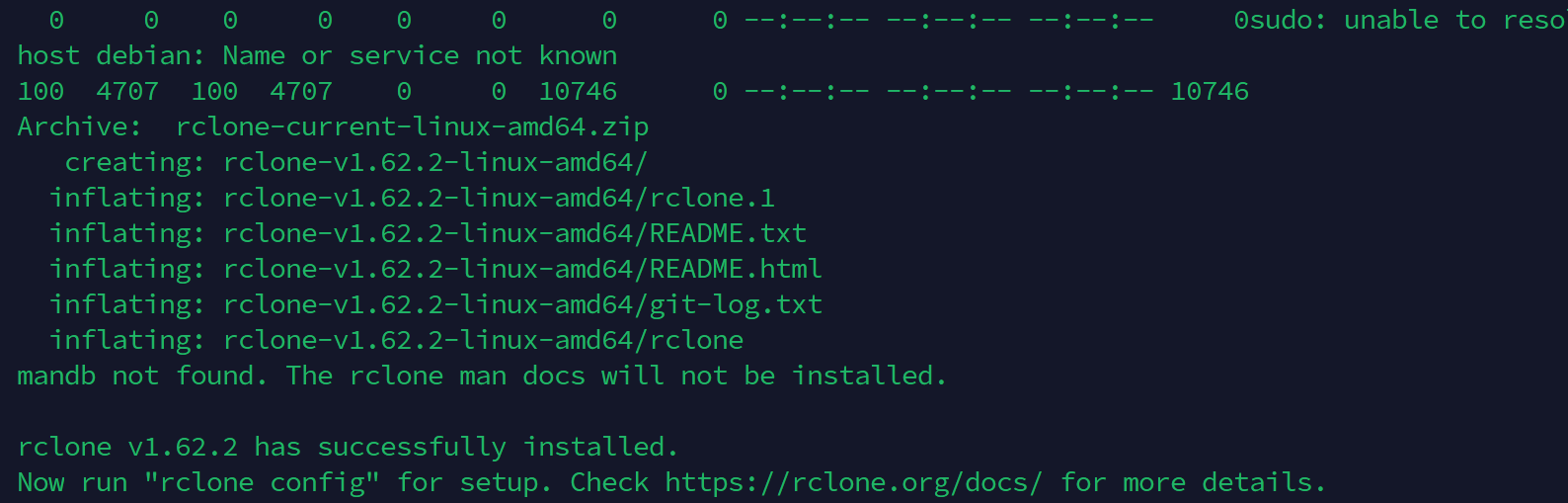
<p>安装完成的话长这样子<br>
<img src="https://img10.360buyimg.com/ott/jfs/t20250620/146365/38/35690/84687/64926039F88fae327/1f3aefdba647add4.png" alt="img" loading="lazy"><br>
2<br>
获取infini-cloud的配置<br>
登录状态下打开这个链接<br>
<a href="https://infini-cloud.net/en/modules/mypage/usage/">https://infini-cloud.net/en/modules/mypage/usage/</a><br>
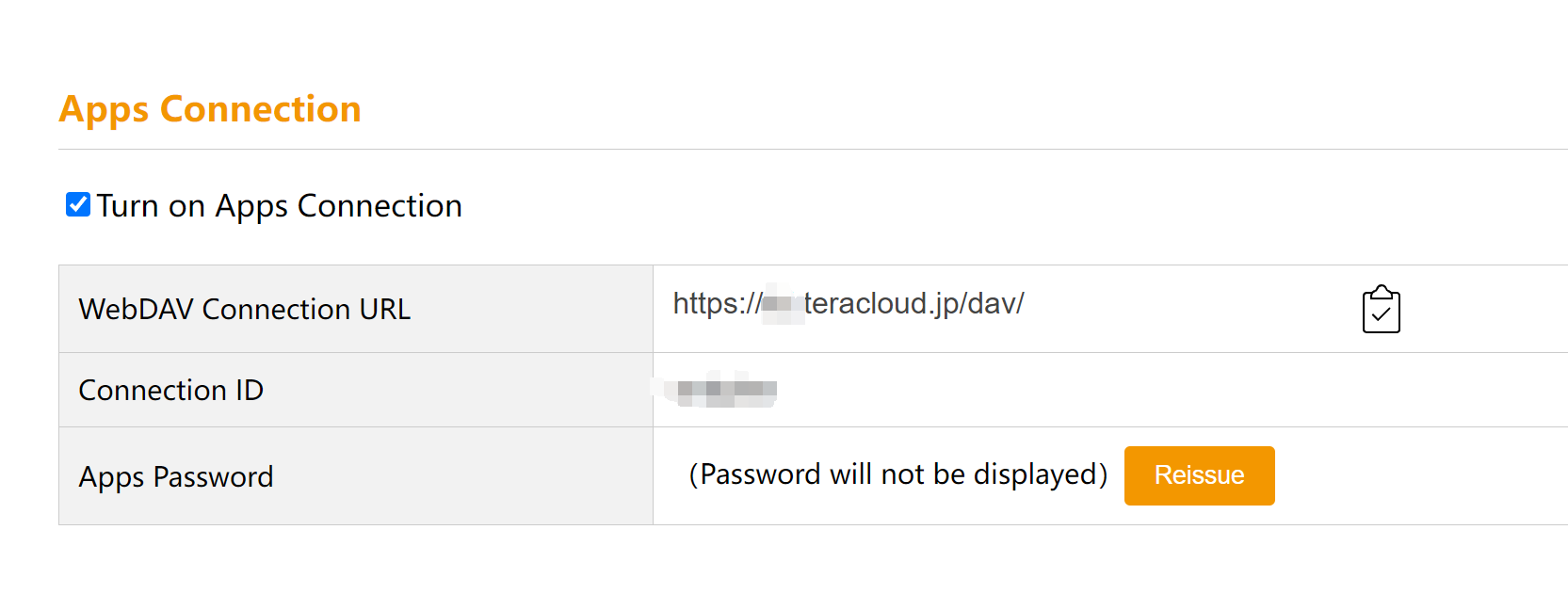
<img src="https://img10.360buyimg.com/ott/jfs/t20250620/199339/5/37108/54212/64926053F87d2f35f/59c38cbac2840bfa.png" alt="img" loading="lazy"><br>
把Turn on Apps Connection给勾上<br>
记住你的id和密码，密码只会显示一次，记得保存下<br>
三个参数，一个url，一个id，一个password，准备好<br>
url的话下面3④里面用到<br>
Connection ID就是3⑤user<br>
Apps Password	的话3<br>
3配置rclone<br>
①在你的ssh中输入</p>
<pre><code>rclone config
</code></pre>
<p>会出来一排参数,中文啥意思，标在后面了</p>
<pre><code>n) New remote：新建一个远程存储。
s) Set configuration password：设置配置文件的密码。
q) Quit config：退出配置界面。
</code></pre>
<p>②新建的话输入n,会出现</p>
<pre><code>Enter name for new remote.
name&gt; 
</code></pre>
<p>这个你直接随便输入就行,我用的jpwp了<br>
输入完名字会出现一大串的<br>
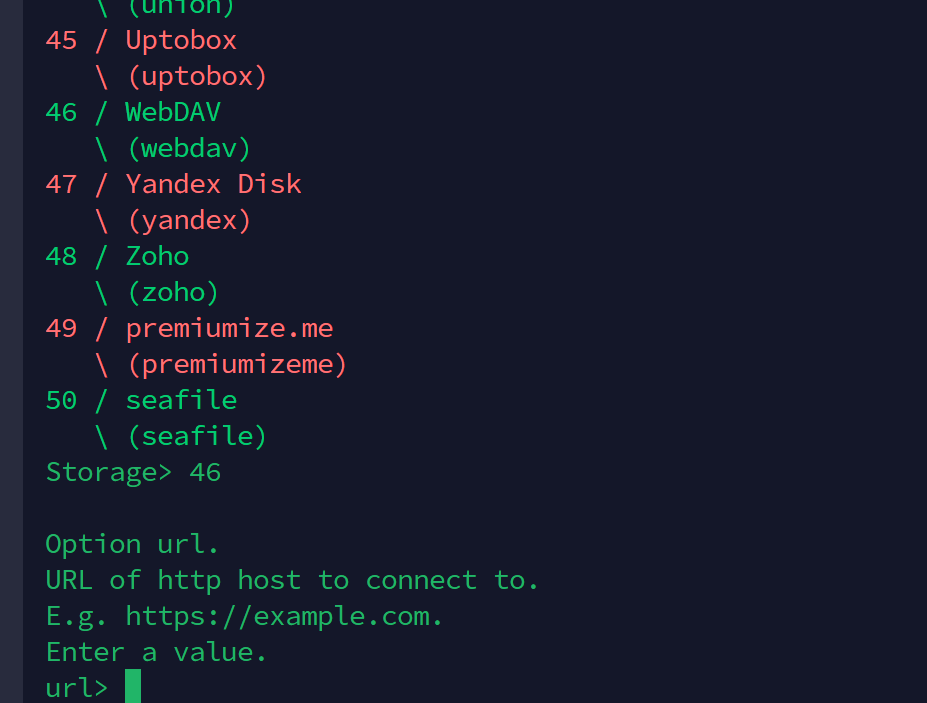
③这个infini-cloud的话我们挂载的是webdav的，选择46 webdav，输入46就行了<br>
④会让你输入url<br>
<img src="https://img10.360buyimg.com/ott/jfs/t20250620/118645/17/39984/59752/6492606eF3de46de7/49bc0b76d569d365.png" alt="img" loading="lazy"><br>
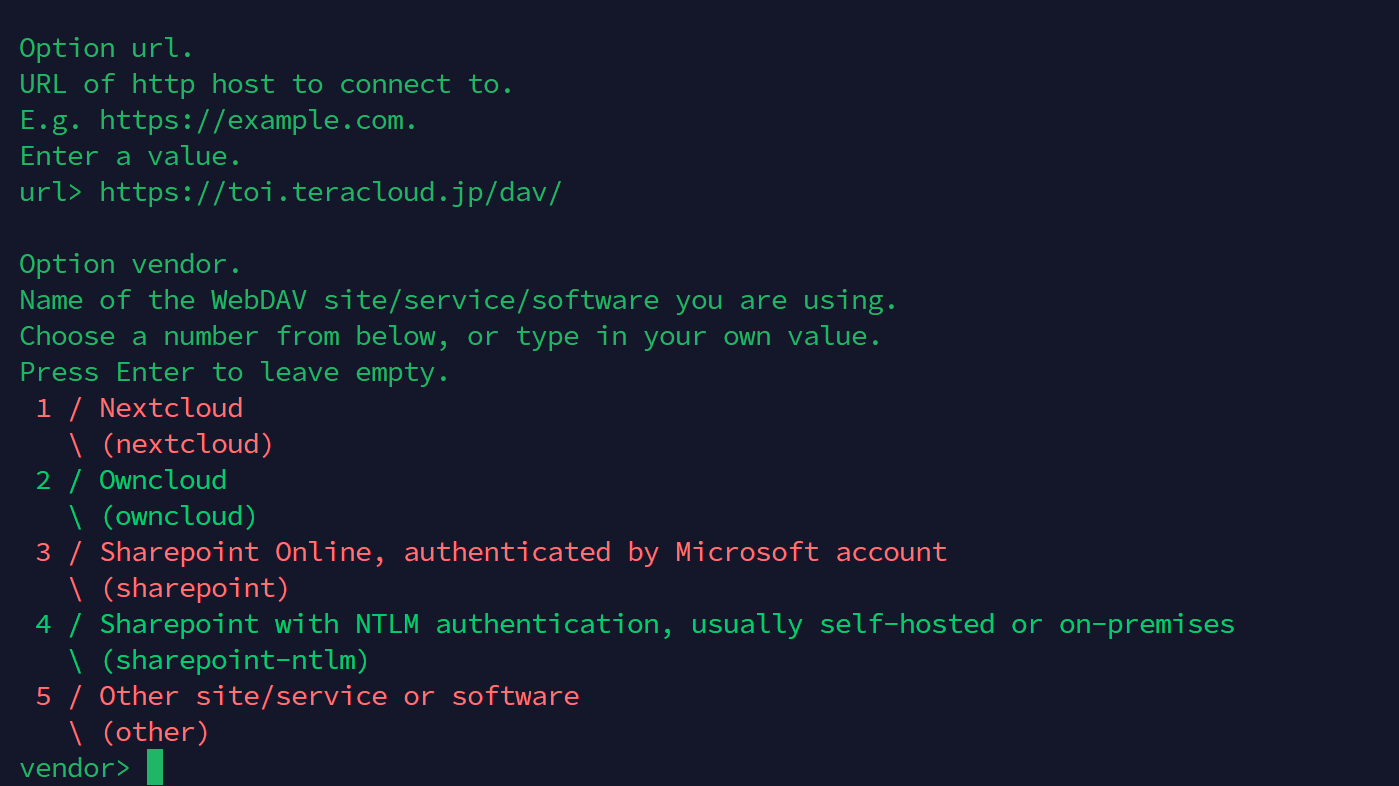
就是第二部里面的url<br>
直接复制，粘贴进去就行了，然后回车<br>
会出现这个，选择5<br>
<img src="https://img10.360buyimg.com/ott/jfs/t20250620/163402/26/35581/94450/6492609aF1bb3610d/c882a3662209d7f4.png" alt="img" loading="lazy"><br>
⑤user输入第2部里面的Connection ID<br>
然后回出现下面的</p>
<pre><code>y) Yes, type in my own password：手动输入密码。
g) Generate random password：随机生成密码。
n) No, leave this optional password blank (default)：不设置密码
</code></pre>
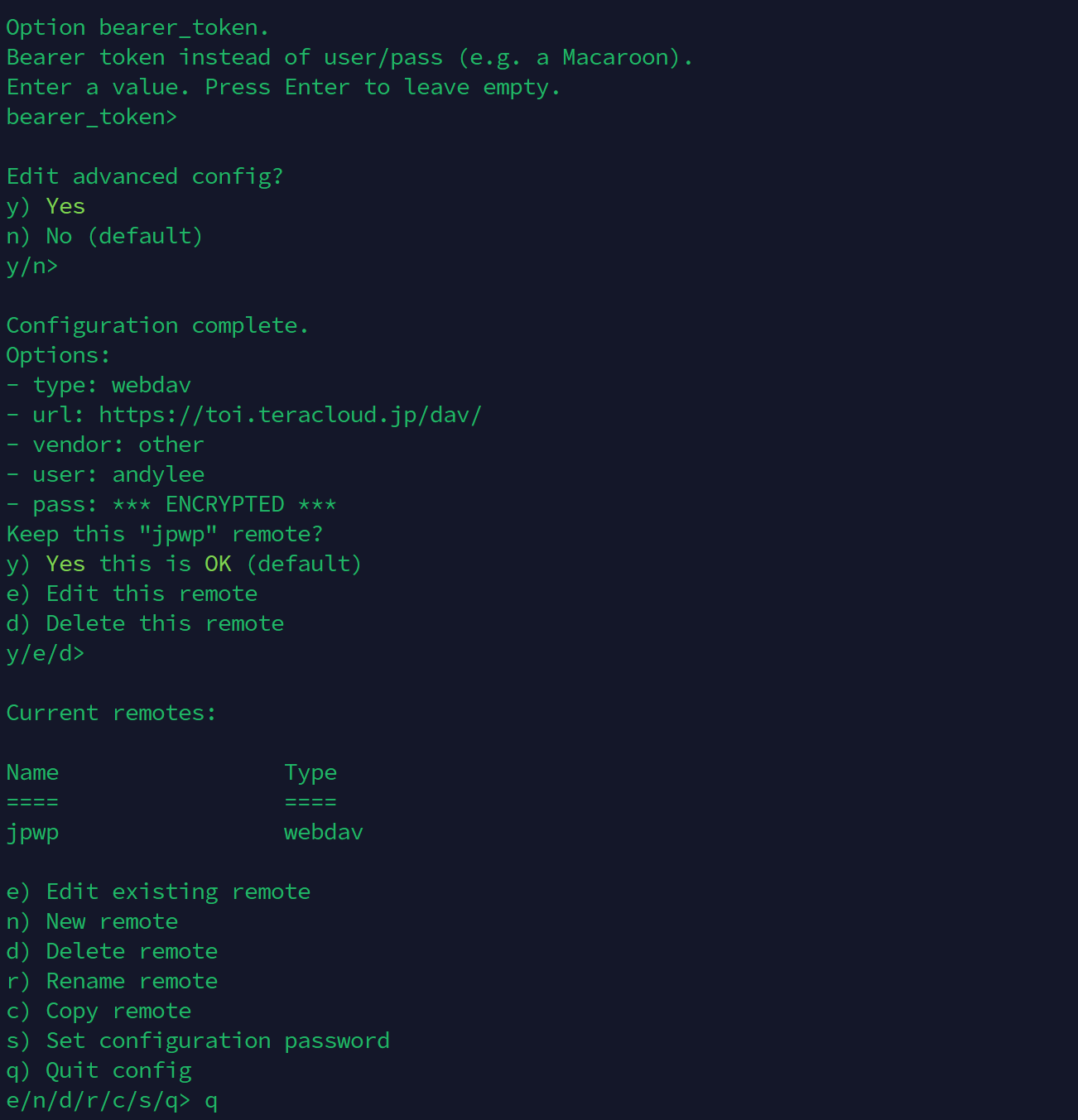
<p>选择y，手动输入第2部里面的那个只出现过一次的密码，复制进去就行了，Linux 终端中输入密码时，密码不会显示在屏幕上<br>
然后bearer token的话直接回车edit  advanced config，也是直接回车<br>
然后keep the  jpwp remote，也是直接回车<br>
然后选择q，退出就ok了<br>
<img src="https://img10.360buyimg.com/ott/jfs/t20250620/104230/11/29214/118196/649260c9F92e51239/ec240dddbf8a0b9b.png" alt="img" loading="lazy"></p>
<p>4①<br>
最后输入下里的命令挂载就ok了</p>
<pre><code>rclone mount jpwp: /mnt/Wanpan --config=/root/.config/rclone/rclone.conf --allow-other --allow-non-empty --vfs-cache-mode full --vfs-cache-max-age 48h --vfs-cache-max-size 5G --cache-dir /tmp/cache --vfs-read-chunk-size 128M --vfs-read-chunk-size-limit 1G --buffer-size 128M --umask 000 &amp;
</code></pre>
<p>②如果出现报错的如下报错的话<br>
<img src="https://img10.360buyimg.com/ott/jfs/t20250620/215031/18/33011/52133/64926b31F4543ee23/039b6b6e2be6510d.png" alt="img" loading="lazy"><br>
是没有装fuse3，debian和ubuntu的话直接用下面的命令apt安装，然后再执行上面的命令就行了</p>
<pre><code>apt-get install fuse3
</code></pre>
<p>③如果出现mount FUSE fs: mountpoint does not exist: /mnt/Wanpan，没有的话，输入下面命令，创建挂载点</p>
<pre><code>mkdir -p /mnt/Wanpan
</code></pre>
<p>在输入上面的命令挂载4①的命令挂载</p>
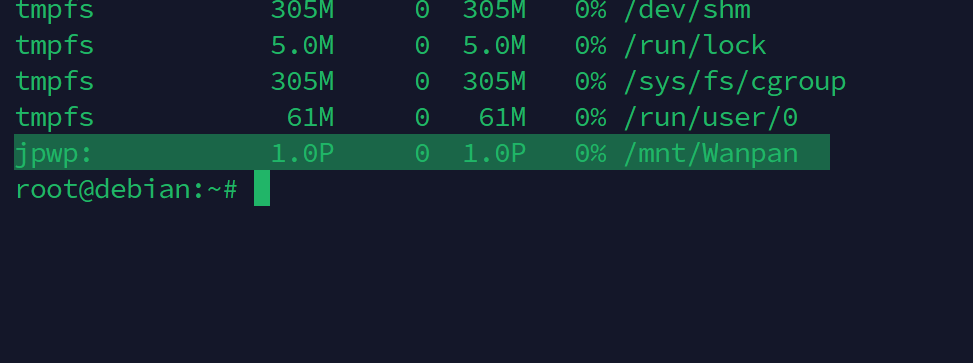
<p>最后输入df-h，显示jpwp的话那就是挂载成功了，1PB是唬人的，实际就是你网盘的容量,其他支持webdav的网盘，也是这样子挂载的<br>
<img src="https://img10.360buyimg.com/ott/jfs/t20250620/111235/18/35275/32914/64926103F5a9f9098/fd25d8cfadbee1a8.png" alt="img" loading="lazy"></p>
]]></content>
    </entry>
    <entry>
        <title type="html"><![CDATA[gridea部署静态博客]]></title>
        <id>https://www.kaino3.com/20230601/</id>
        <link href="https://www.kaino3.com/20230601/">
        </link>
        <updated>2023-06-01T11:50:50.000Z</updated>
        <content type="html"><![CDATA[<p>gridea是一个个静态博客的客户端<br>
相对于hugo和hexo啥的，最大的好处就是简单，不用配置啥复杂的东西<br>
缺点，就是主题很少<br>
本文用github仓库部署，可以同时直接用仓库部署到github pages，cf pages，vercel，netlify，国内访问推荐vercel<br>
由于这几个默认域名无法访问，需要绑个自己的域名</p>
<p>一   配置github<br>
①没号的先注册一个<br>
<a href="https://github.com/">https://github.com/</a><br>
点击右上角singup注册一个<br>
②创建github仓库<br>
<a href="https://github.com/new">https://github.com/new</a><br>
创建个username.github.io，username就是你用户名，其实也可以不这样子，仓库名随便取，只是没法用github pages而已，不影响部署到cf pages和vercel的<br>
③申请token<br>
<a href="https://github.com/settings/tokens/new">https://github.com/settings/tokens/new</a><br>
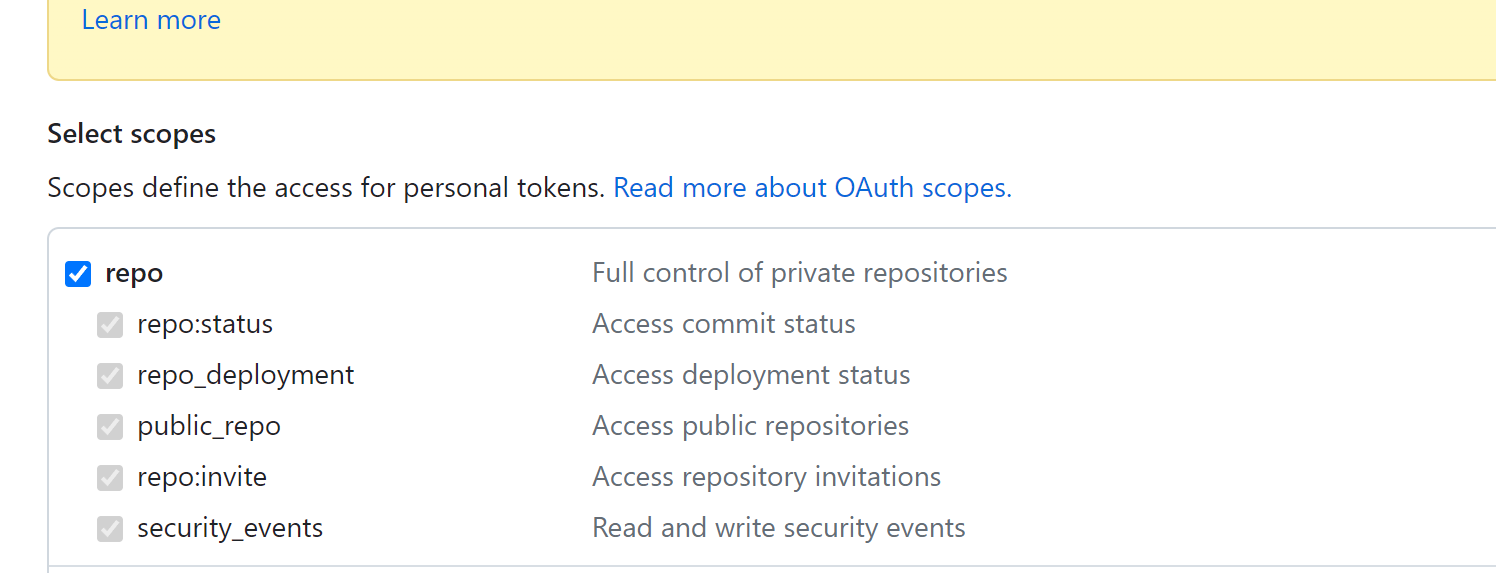
<img src="https://img10.360buyimg.com/ott/jfs/t20250620/138712/8/38368/78918/64926521F031960ec/cb3cfc5ca2b42970.png" alt="img" loading="lazy"><br>
token时间自己爱要多久，反正我直接永久，repo勾上，token只显示一次，记得保存下</p>
<p>二 配置gridea<br>
①下载</p>
<p><a href="https://github.com/getgridea/gridea/releases">https://github.com/getgridea/gridea/releases</a><br>
自己根据客户端下载<br>
支持mac，win，linux三大系统<br>
②配置<br>
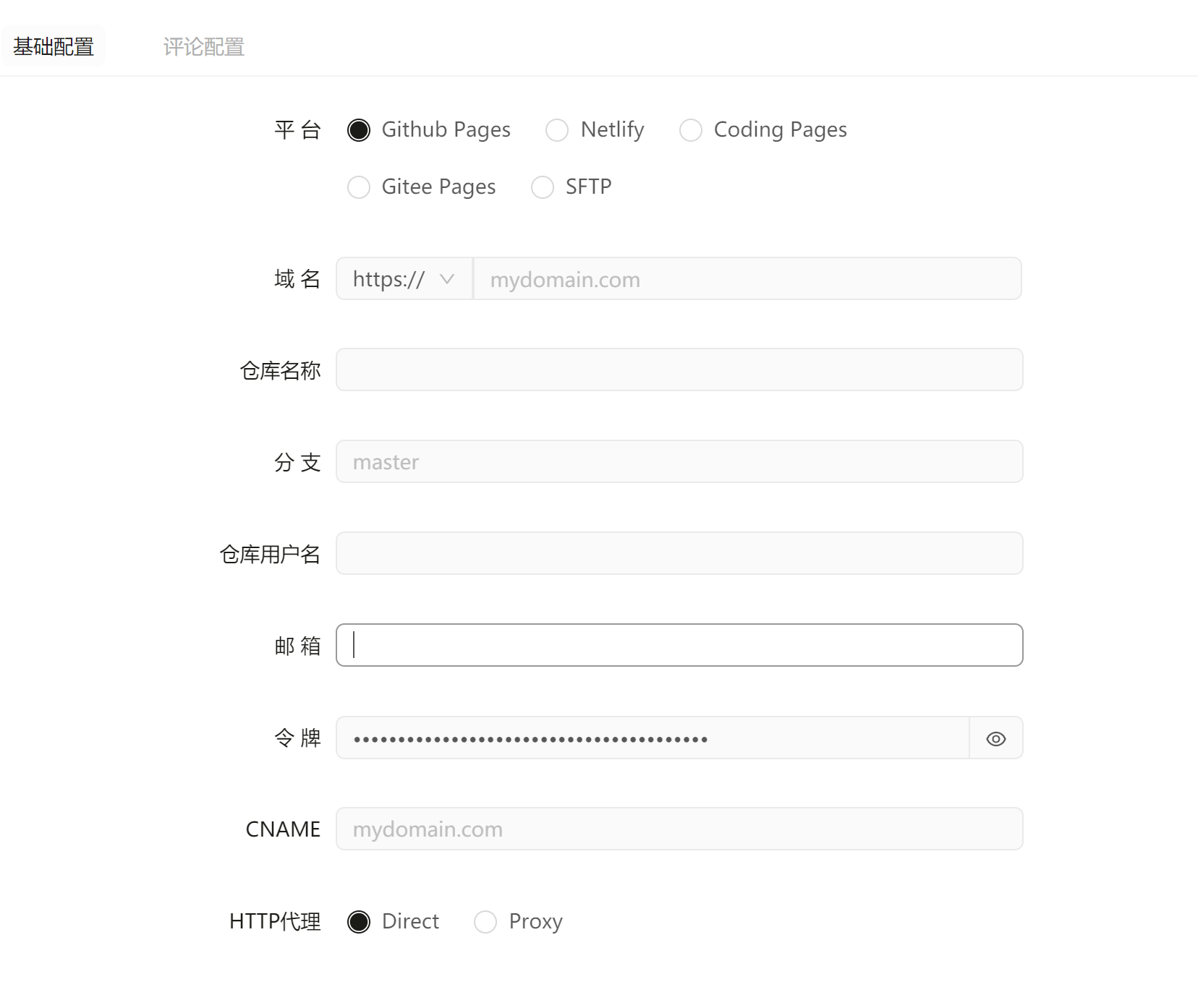
<img src="https://img10.360buyimg.com/ott/jfs/t20250620/136809/33/36153/91652/6492653fF9c321c05/90b353d512cc395e.png" alt="img" loading="lazy"><br>
点击左边的远程，界面长这样子<br>
选择github pages，<br>
域名:你要绑的域名<br>
仓库名称:刚刚建的github的仓库的名字:username.github.io这样子<br>
分支，现在一般默认是main，自己看下你github仓库<br>
仓库用户名,你github的user name<br>
邮箱，你github的邮箱<br>
令牌，刚刚第三步申请的token<br>
cname这个不用github pages啥的话不用管，要用的话填你要绑的域名</p>
<p>然后保存，再点下检测远程连接的，显示成功的话就ok了<br>
③备份<br>
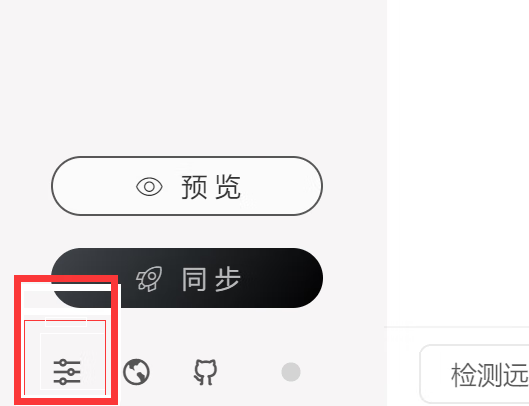
点击最左边这个按钮，点进去，有个站点源文件路径，那就是gridea的配置文件了，要备份的话直接打包上传到网盘，或者直接整个坚果云或者onedrive啥的同步直接<br>
<img src="https://img10.360buyimg.com/ott/jfs/t20250620/122232/5/37159/6926/64926557Fce9c857b/42cf6972fc6321ca.png" alt="img" loading="lazy"><br>
④写文章<br>
支持markdown，点击左边的文章，自己写<br>
⑤点击左下角同步，同步到你github<br>
如果没法同步的话，设置里，自己填写</p>
<p>三 部署到各家平台<br>
1github pages<br>
找到你username.github.io的仓库，点击setting，选择pages启用，可以绑定自己的域名，不展开讲了，自己搜下</p>
<p>2部署到cf pages（推荐）<br>
①注册cf账户<br>
<a href="https://cloudflare.com/">https://cloudflare.com/</a> 打开网站，点击注册<br>
②创建pages<br>
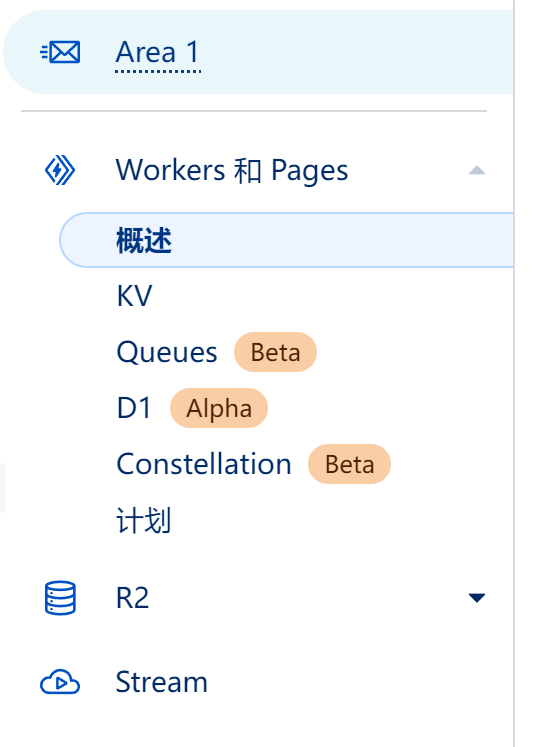
点击workes and pages<br>
<img src="https://img10.360buyimg.com/ott/jfs/t20250620/121938/24/36290/42514/64926574F8684e663/98fe0e45fe006324.png" alt="img" loading="lazy"><br>
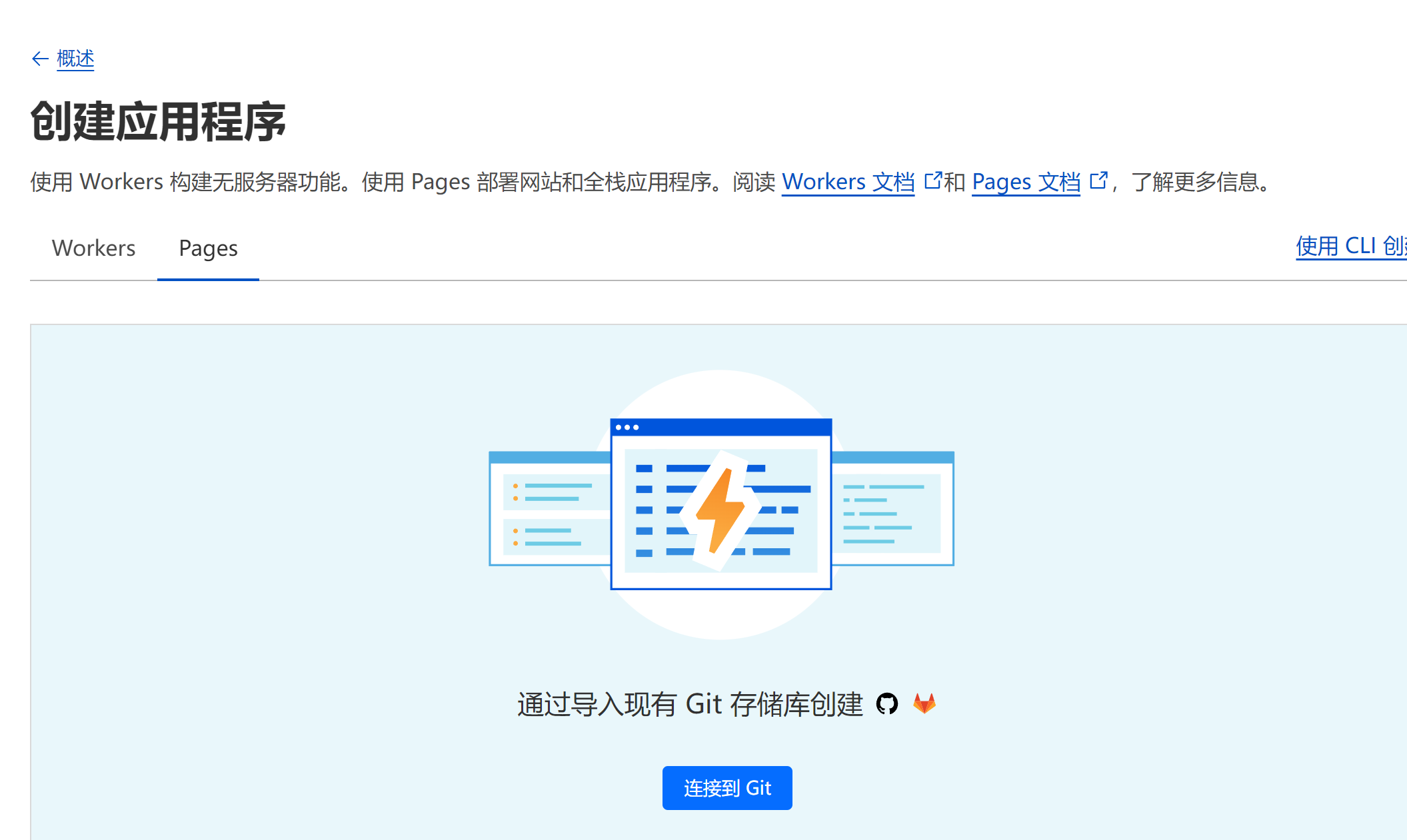
创建应用程序，选择pages<br>
<img src="https://img10.360buyimg.com/ott/jfs/t20250620/216500/18/32020/119943/64926588Ff650ae56/b2bffe5141036a6e.png" alt="img" loading="lazy"><br>
连接到git<br>
<img src="https://img10.360buyimg.com/ott/jfs/t20250620/93932/25/36976/20853/649265c8Fe25b68a1/b917ba40b87b6c4b.png" alt="img" loading="lazy"><br>
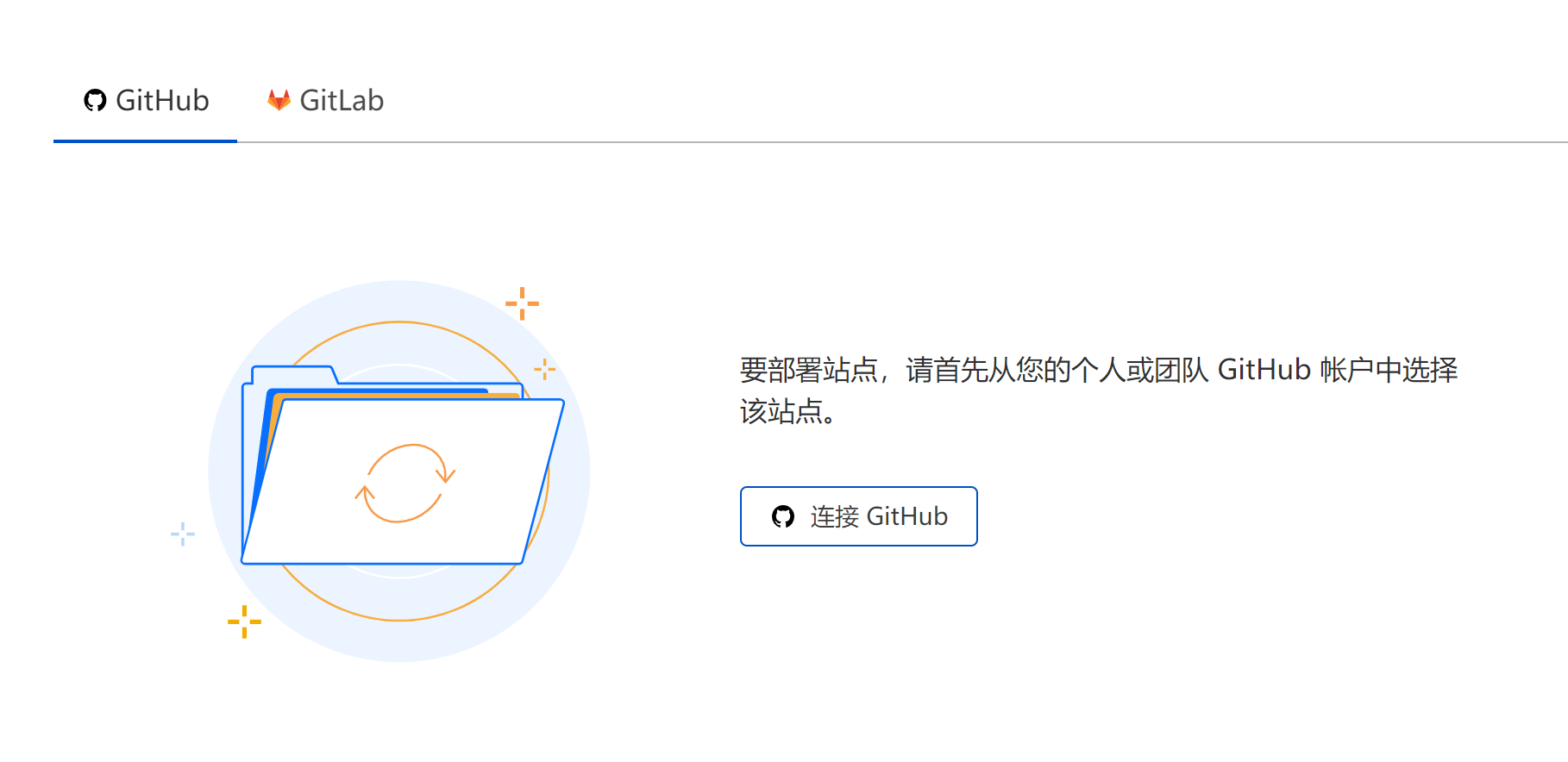
连接到github账户，选择你刚刚创建的那个github仓库<br>
<img src="https://img10.360buyimg.com/ott/jfs/t20250620/128213/25/38585/71130/649265e4F4592b509/74239f028897df98.png" alt="img" loading="lazy"><br>
然后点开始设置<br>
<img src="https://img10.360buyimg.com/ott/jfs/t20250620/134074/26/39211/49056/6492662cFbe3351e3/4ea31568ee74d2f4.png" alt="img" loading="lazy"><br>
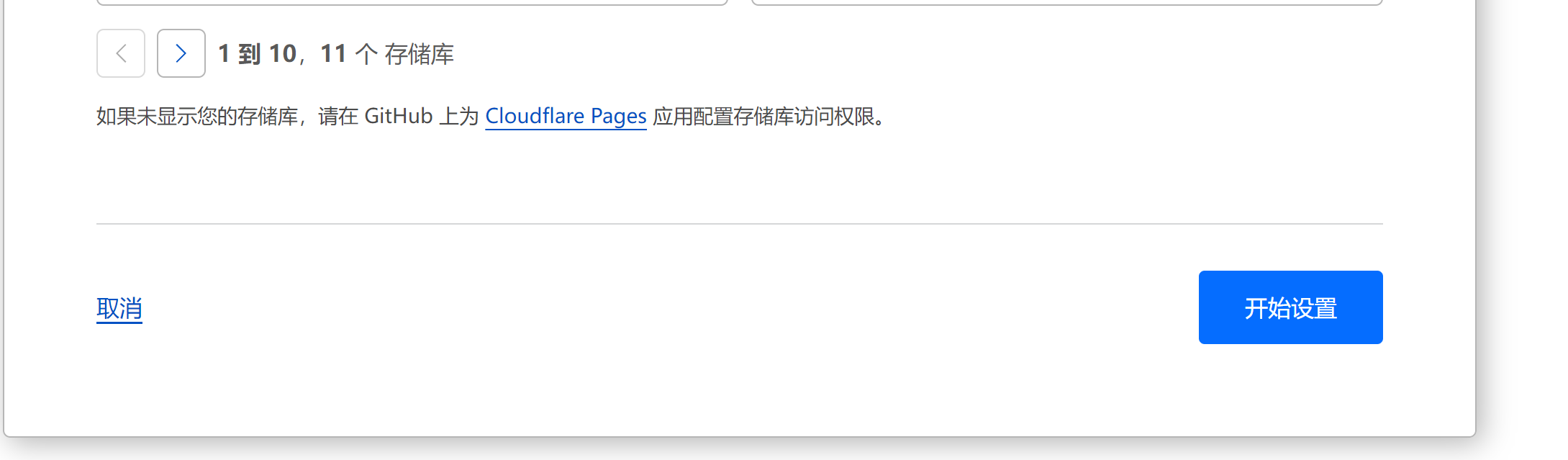
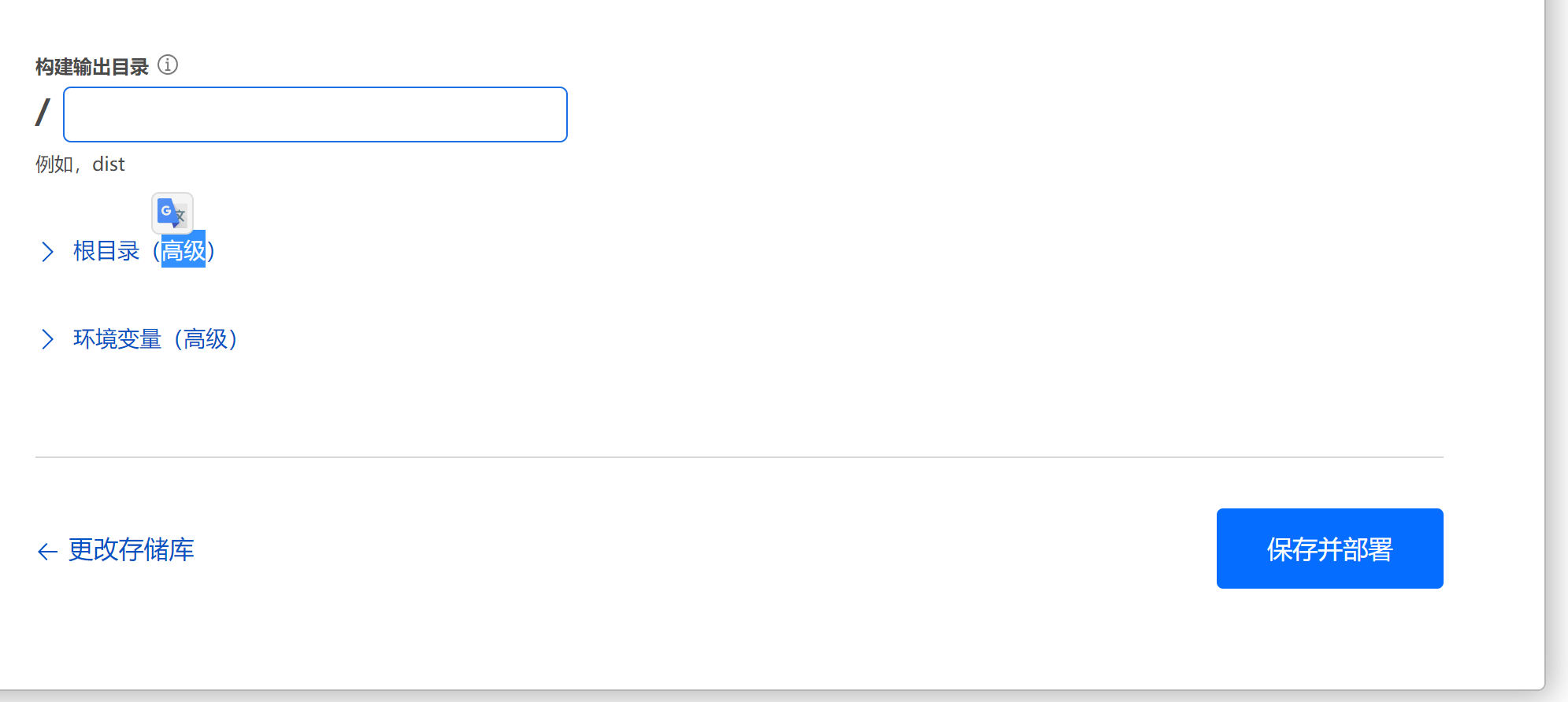
保存并部署<br>
<img src="https://img10.360buyimg.com/ott/jfs/t20250620/141947/20/32111/44055/6492664eF223b46c1/c00bc1301c3facbe.png" alt="img" loading="lazy"><br>
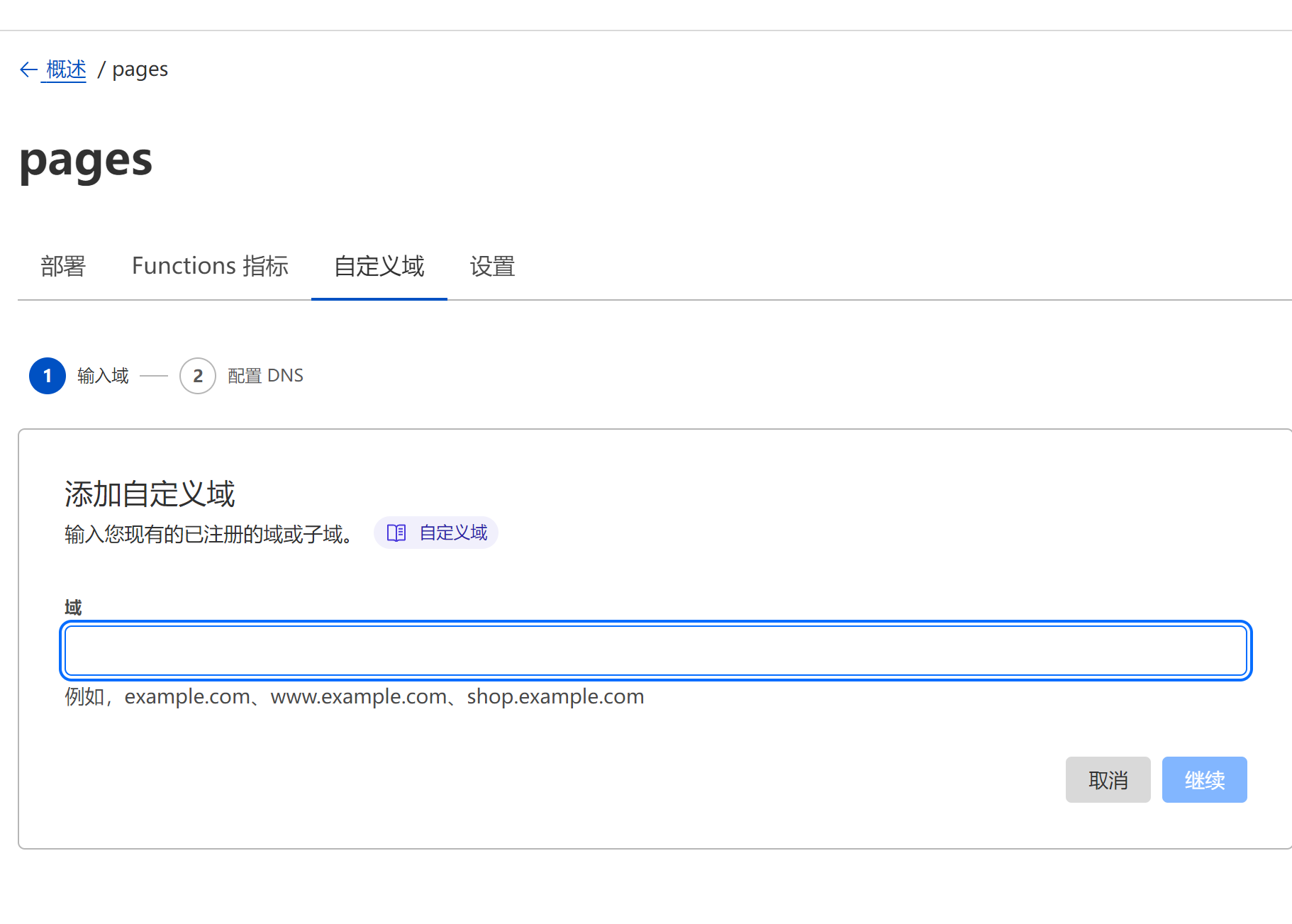
设置自定义域，默认的pages.dev无法访问，输入你在gridea里填的域名<br>
<img src="https://img10.360buyimg.com/ott/jfs/t20250620/151753/10/27188/91271/6492665fF809dd07d/53c03d3b5b71e777.png" alt="img" loading="lazy"><br>
然后点激活域再等会就ok了<br>
浏览器打开你的域名就可以访问了</p>
<p>3部署到vercel<br>
①<a href="https://vercel.com">https://vercel.com</a>   点击右上角singup，再点击用github登录<br>
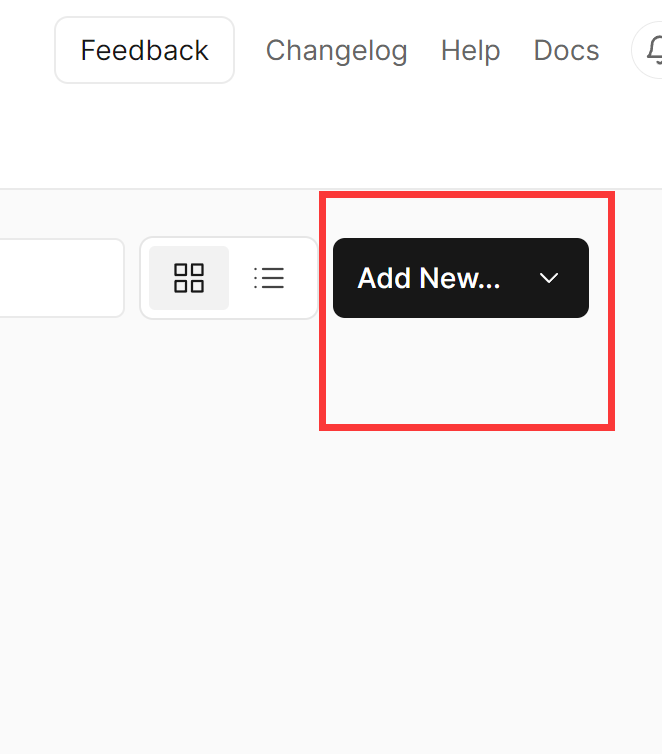
②点击add new project,选择你的github仓库，再点击import<br>
<img src="https://img10.360buyimg.com/ott/jfs/t20250620/205845/18/38588/21614/649266deF9b8c081f/6987753ca55e837a.png" alt="img" loading="lazy"><br>
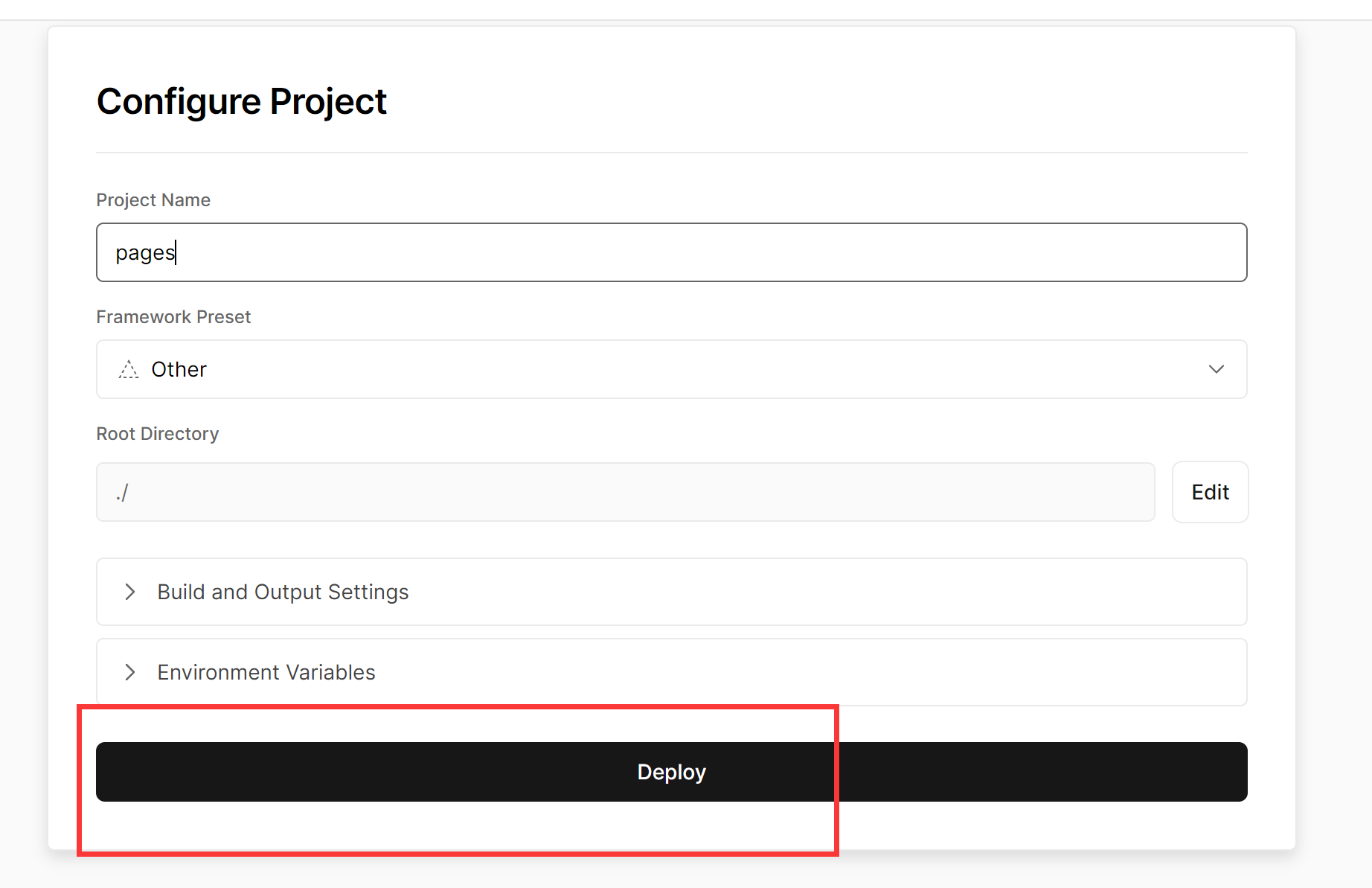
然后点击deploy直接部署<br>
<img src="https://img10.360buyimg.com/ott/jfs/t20250620/128408/26/40447/60437/649266d7Ffc74114a/fbecbc5cc34b20ce.png" alt="img" loading="lazy"><br>
然后就部署好了<br>
③设置自定义域，默认的vercel.app无法访问，输入你在gridea里填的域名<br>
点击setting，选择左边的domains<br>
在cloudflare或者别的域名解析商那里添加一个A记录到76.76.21.21<br>
或者cname到cname.vercel-dns.com<br>
都是可以的，具体怎么操作看vercel的文档<br>
<a href="https://vercel.com/docs/concepts/projects/domains/working-with-nameservers">https://vercel.com/docs/concepts/projects/domains/working-with-nameservers</a><br>
vercel的亚马逊aga到国内速度明显比其他的快，推荐这个部署，但是免费只有100G的流量，不过个人博客也够用了<br>
4部署到netlify<br>
①<a href="https://www.netlify.com/">https://www.netlify.com/</a>,点击右上角singup，选择github登录<br>
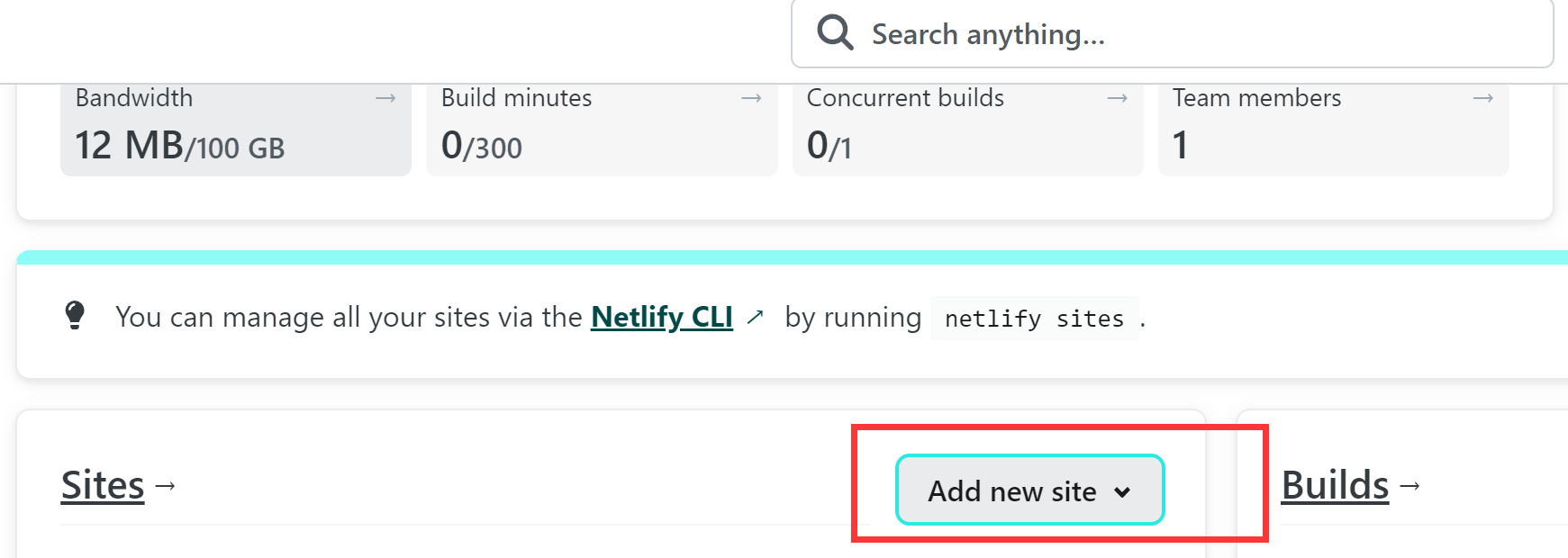
②点击add new site<br>
<img src="https://img10.360buyimg.com/ott/jfs/t20250620/213472/14/32162/72634/64926683F2b66dd67/ac05c7df38f12111.png" alt="img" loading="lazy"><br>
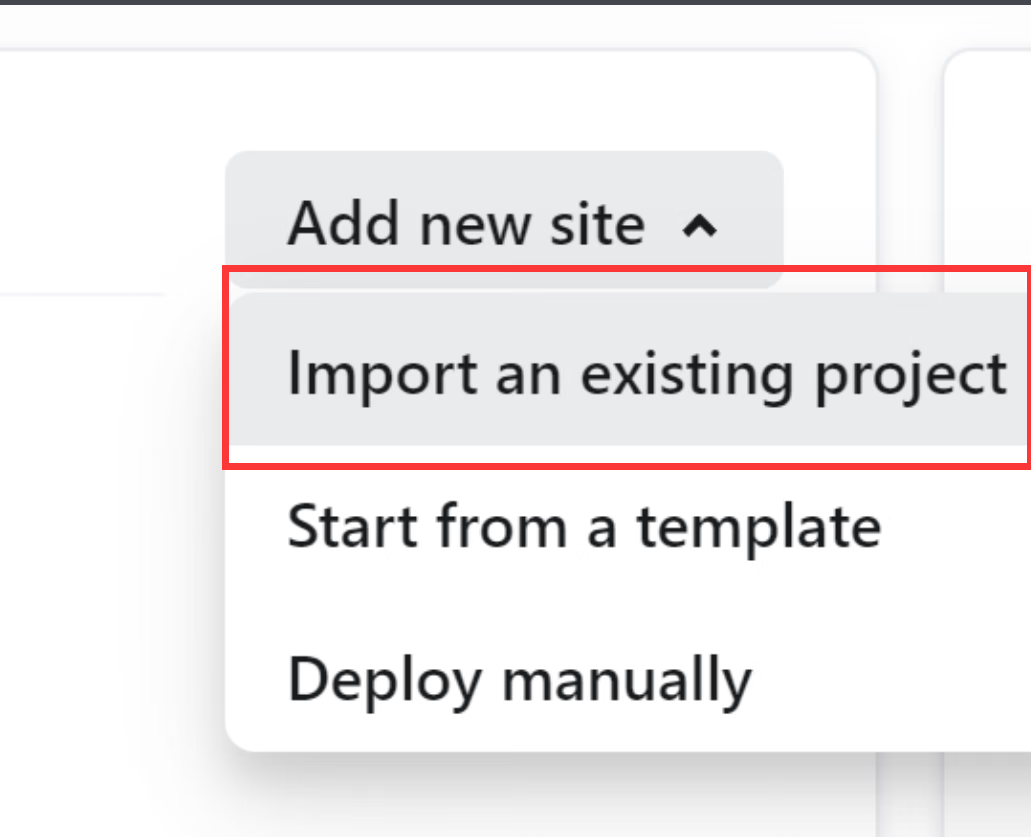
选择import an existing project<br>
<img src="https://img10.360buyimg.com/ott/jfs/t20250620/122625/26/37179/23931/64926696F795b3905/f90c68cb793a4e99.png" alt="img" loading="lazy"><br>
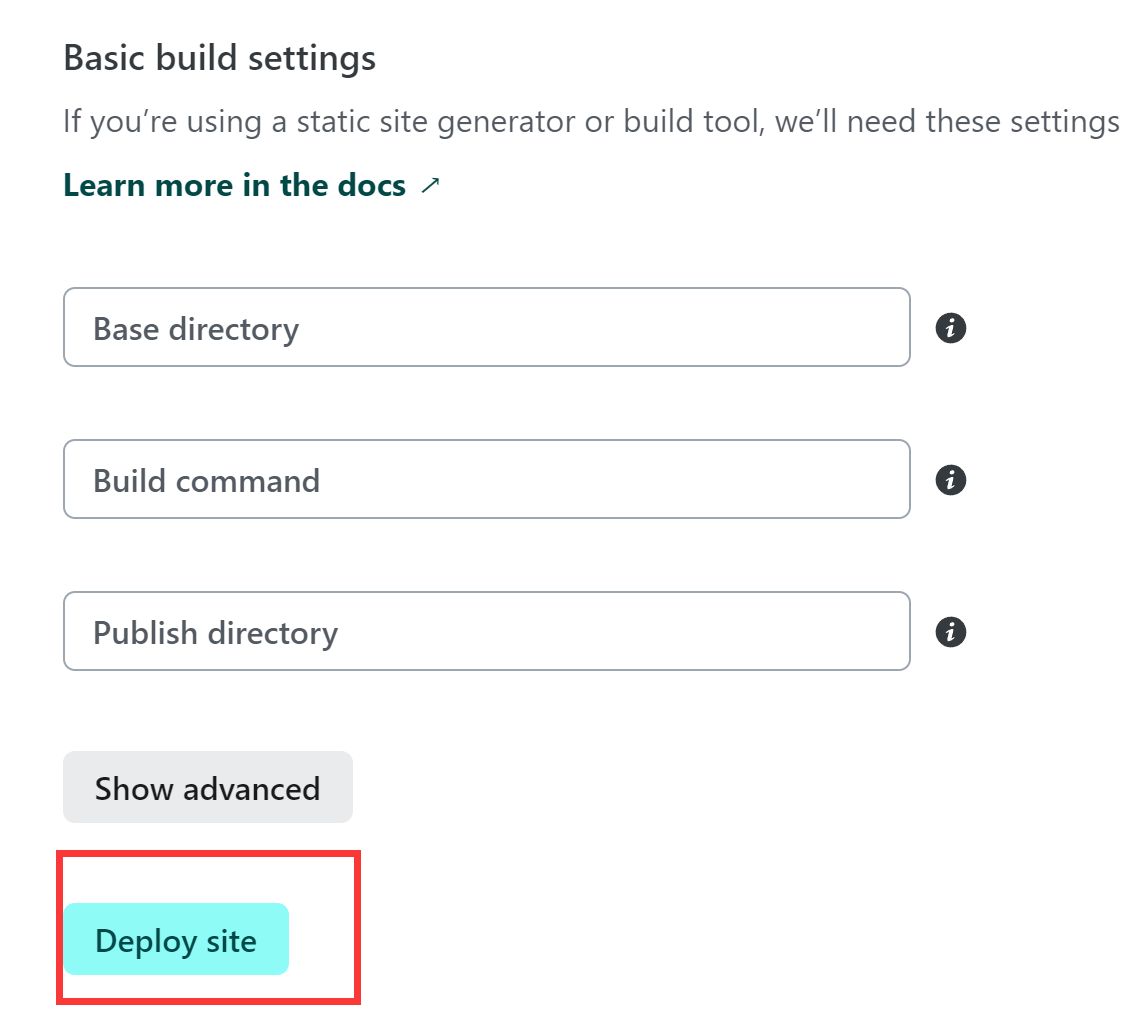
选择你的github仓库，再点deploy site部署<br>
<img src="https://img10.360buyimg.com/ott/jfs/t20250620/72533/36/24257/66884/649266a0F11e2900f/68a64f0b4673fa5a.png" alt="img" loading="lazy"></p>
<p>③设置自定义域，默认的netlify.ap无法访问，输入你在gridea里填的域名<br>
点击domain setting，然后把你的域名cname过去就行了，具体怎么弄看netlify的文档<br>
<a href="https://docs.netlify.com/domains-https/custom-domains/">https://docs.netlify.com/domains-https/custom-domains/</a></p>
]]></content>
    </entry>
    <entry>
        <title type="html"><![CDATA[联想thinkbook14+开箱]]></title>
        <id>https://www.kaino3.com/20220923/</id>
        <link href="https://www.kaino3.com/20220923/">
        </link>
        <updated>2022-09-23T12:19:51.000Z</updated>
        <content type="html"><![CDATA[<p>我一台8250u的笔记本用了四年，18年买的用的有点久了，准备换了12代酷睿但续航不太行，还是上6800H的thinkbook14+，5000左右的水桶机，买之前论坛贴吧知乎B站刷了一大圈的测评<br>
9月3号就到了，用了半个多月吧做个开箱，想买的话确实还不错<br>
机子正面<br>
<img src="https://img10.360buyimg.com/ott/jfs/t1/142752/12/29336/24082/632da524E32e89c77/db1d71d683e0c86c.png" alt="1663935771508.png" loading="lazy"><br>
键盘<br>
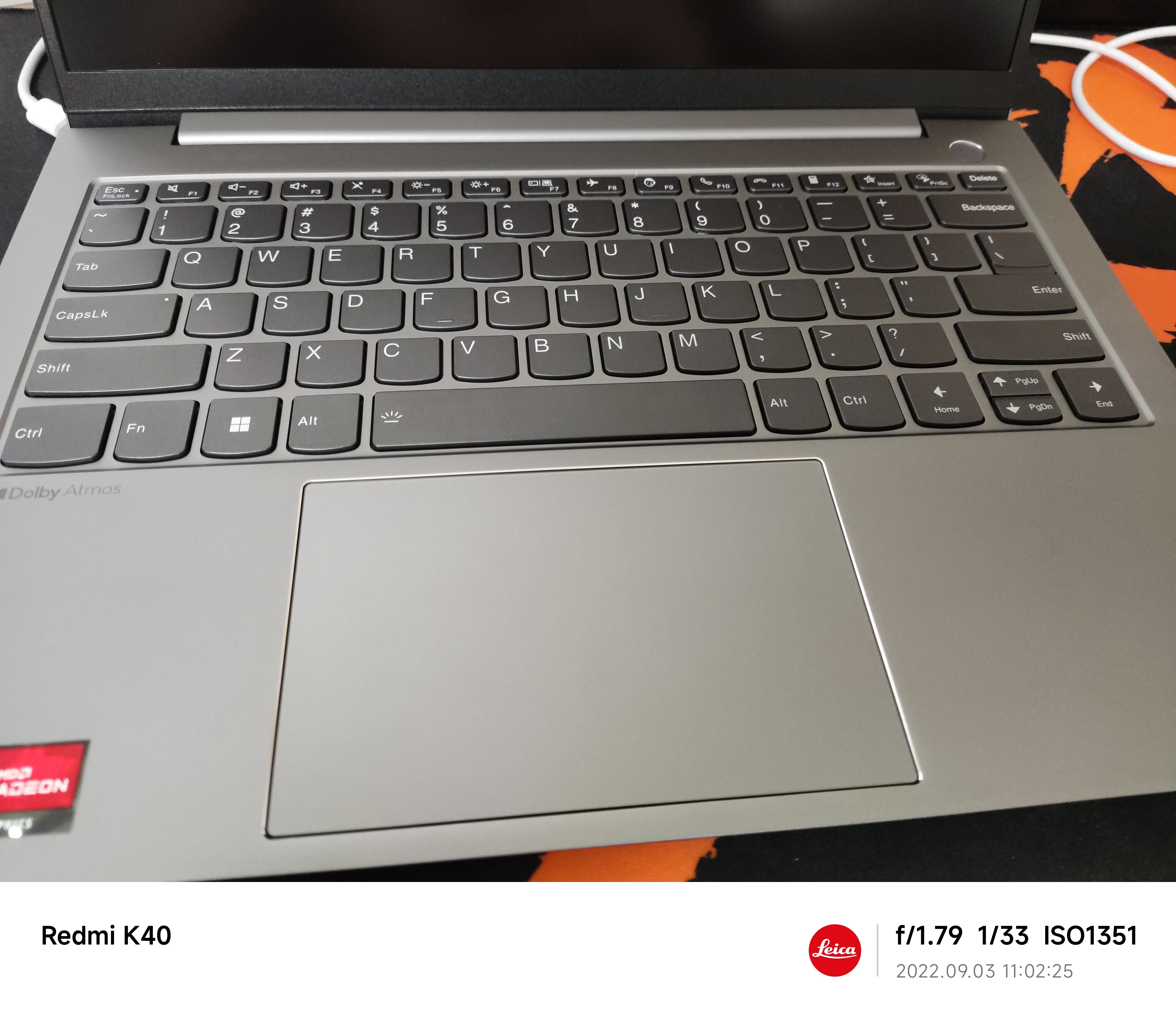
<img src="https://img10.360buyimg.com/ott/jfs/t1/55142/29/21528/4608475/632da576E080bc7f6/93fa8e11459cdd9d.jpg" alt="1663935879059.jpg" loading="lazy"><br>
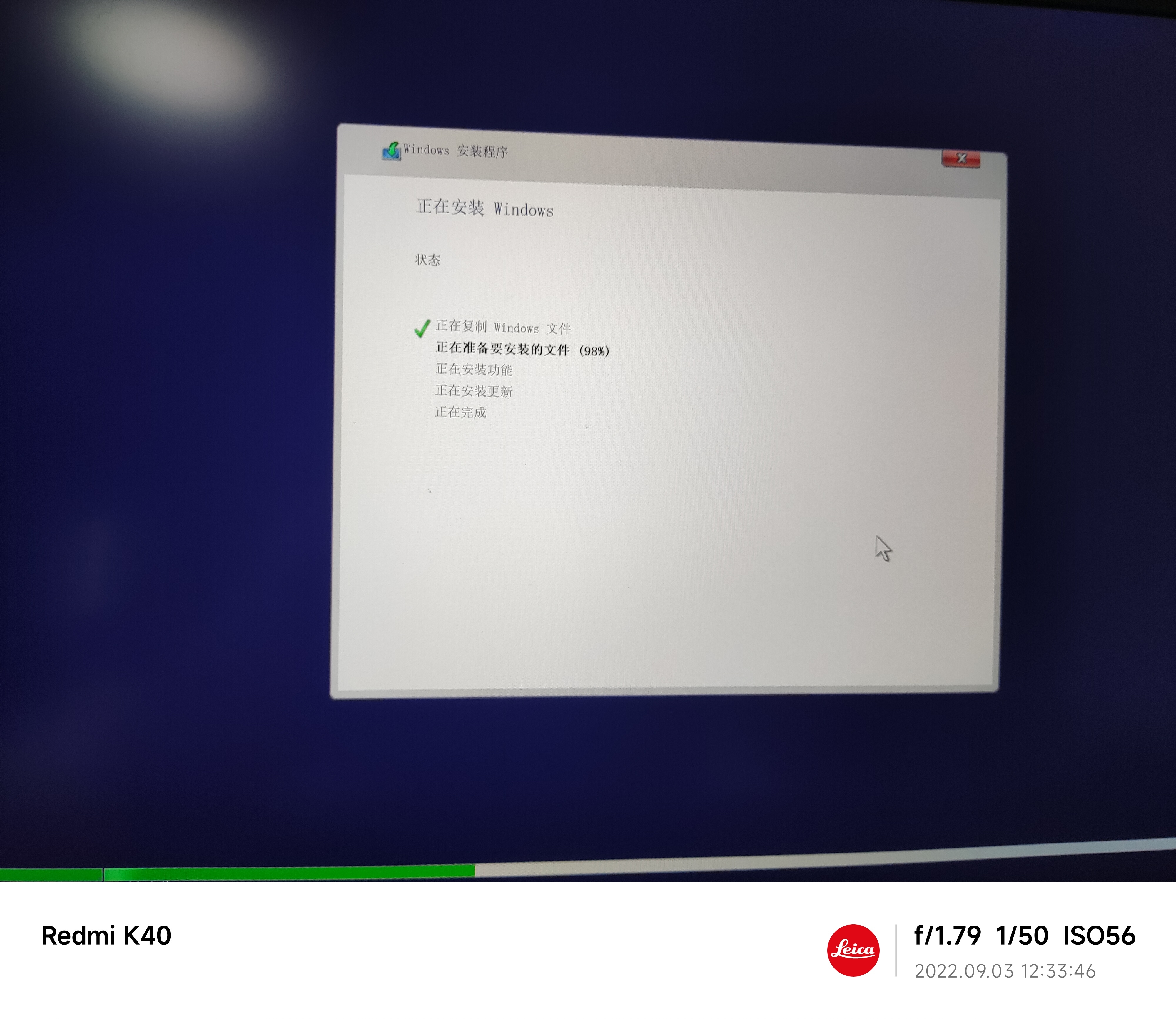
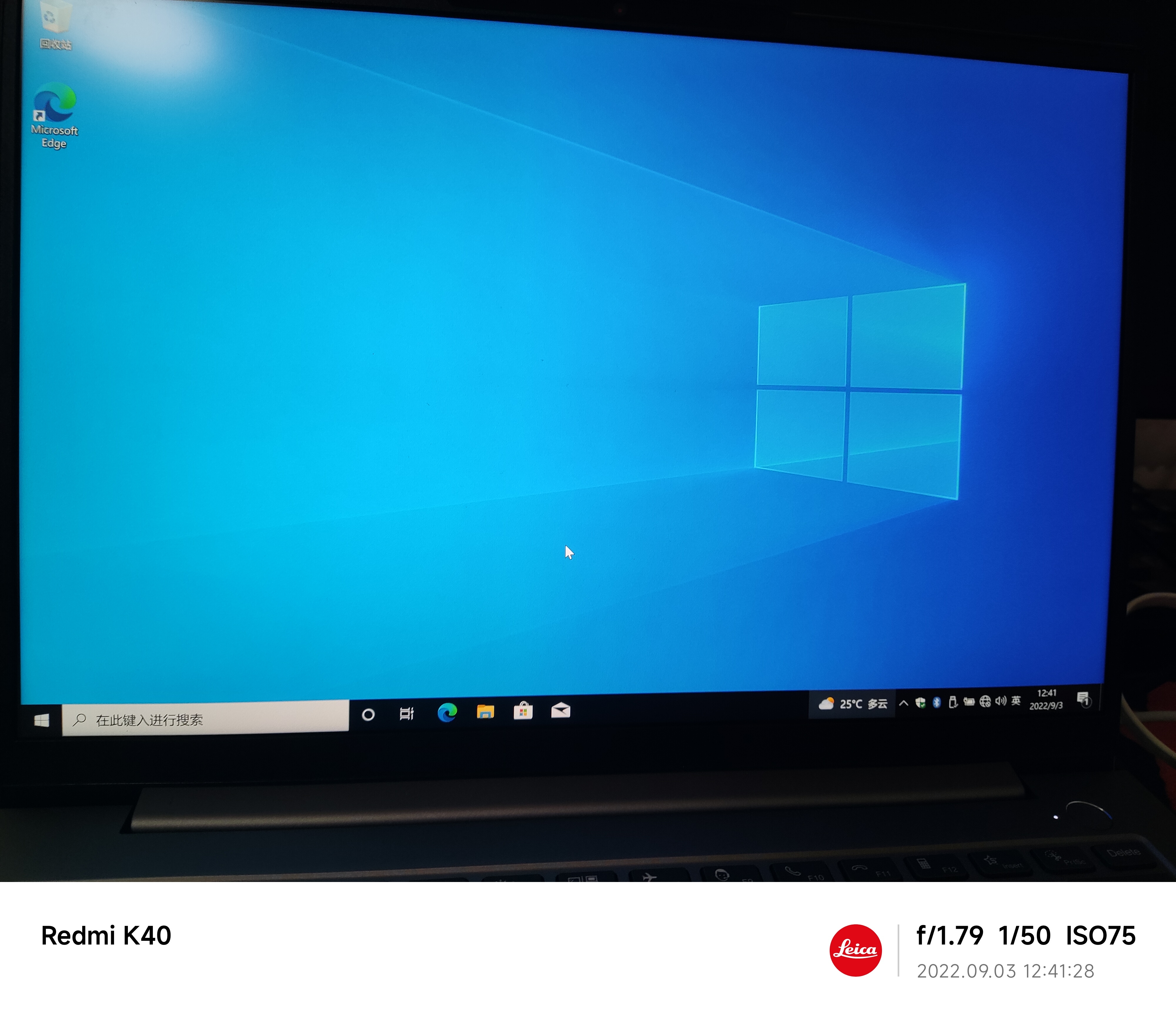
原装的话是win11家庭版的，我自己重装成了win10专业版了<br>
驱动的话联想官网有下载地址的<br>
https://think.lenovo.com.cn/support/driver/newdriversdownlist.aspx?yt=pt&amp;categoryid=15260&amp;CODEName=ThinkBook%2014%20G4+%20ARA&amp;SearchType=0&amp;wherePage=2</p>
<p><img src="https://img10.360buyimg.com/ott/jfs/t1/8844/36/20326/4185753/632da5eaE62786ce2/45361c6a6da93ba2.jpg" alt="1663935961082.jpg" loading="lazy"><br>
<img src="https://img10.360buyimg.com/ott/jfs/t1/102728/20/26808/4515980/632da5caE0b1e860c/5ab08184b5bb26be.jpg" alt="1663935933388.jpg" loading="lazy"><br>
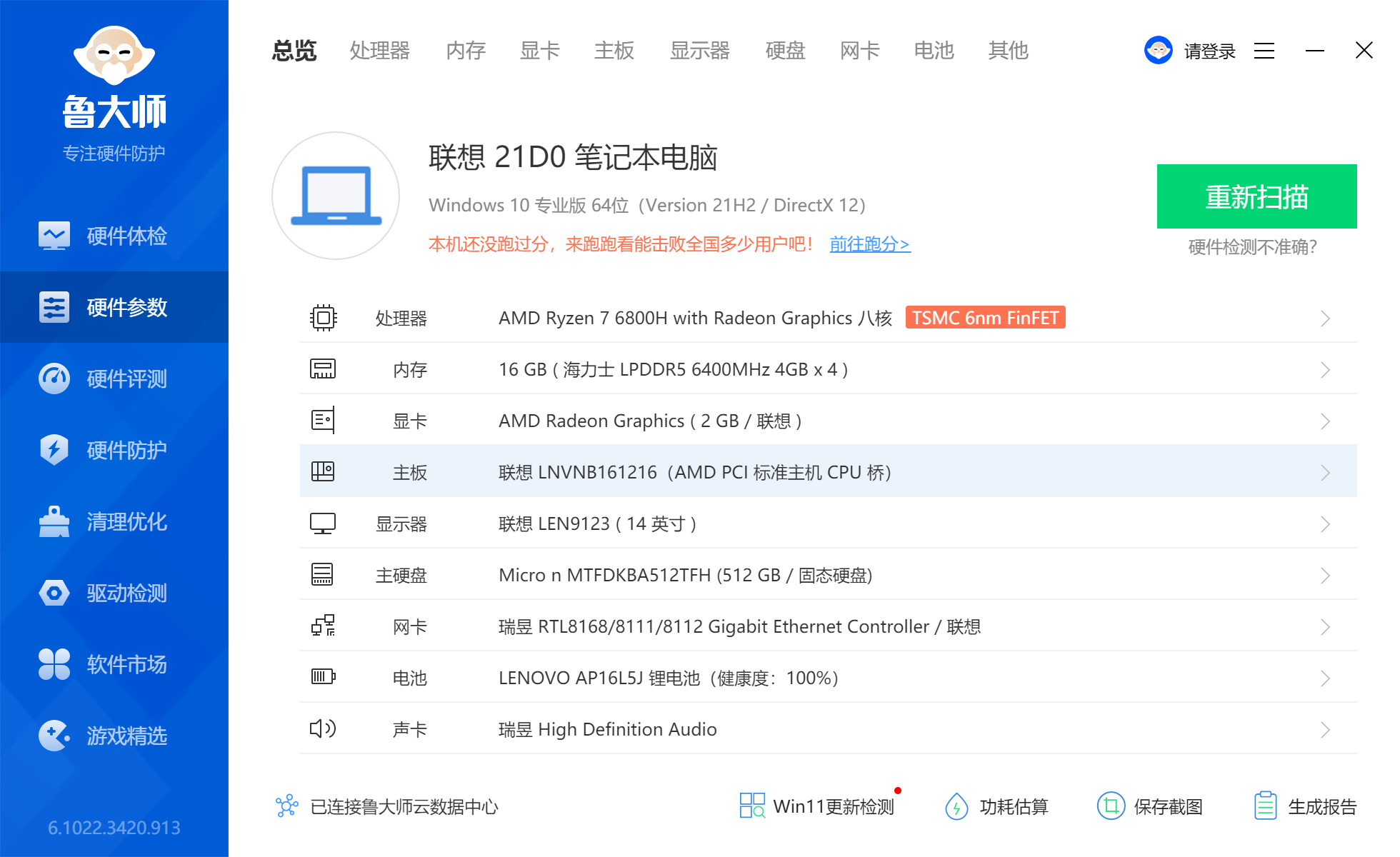
鲁大娘配置图<br>
<img src="https://img10.360buyimg.com/ott/jfs/t1/79835/4/21162/323945/632da60cEe87d96a0/01171e6ab2d59feb.png" alt="1663936004582.png" loading="lazy"><br>
内存海力士，固态美光，网卡是螃蟹的，屏幕隐藏了，运气不太好，摸奖失败<br>
cpu是6800H,8核16线程，足够用了<br>
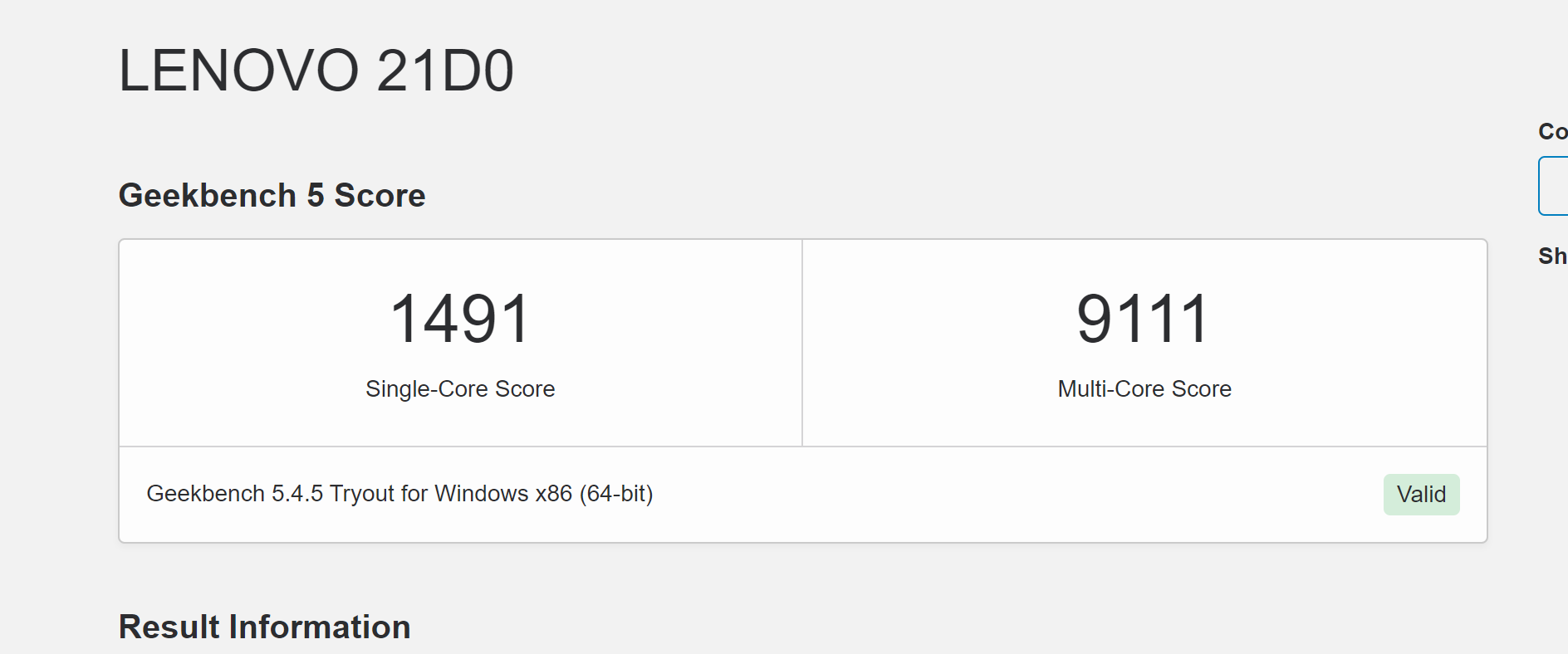
geekbench5单核1491,多核9111，https://browser.geekbench.com/v5/cpu/17484698<br>
<img src="https://img10.360buyimg.com/ott/jfs/t1/138514/1/29677/61607/632da63cE4c3c7bc9/5b24cd2ca720611b.png" alt="1663936054063.png" loading="lazy"><br>
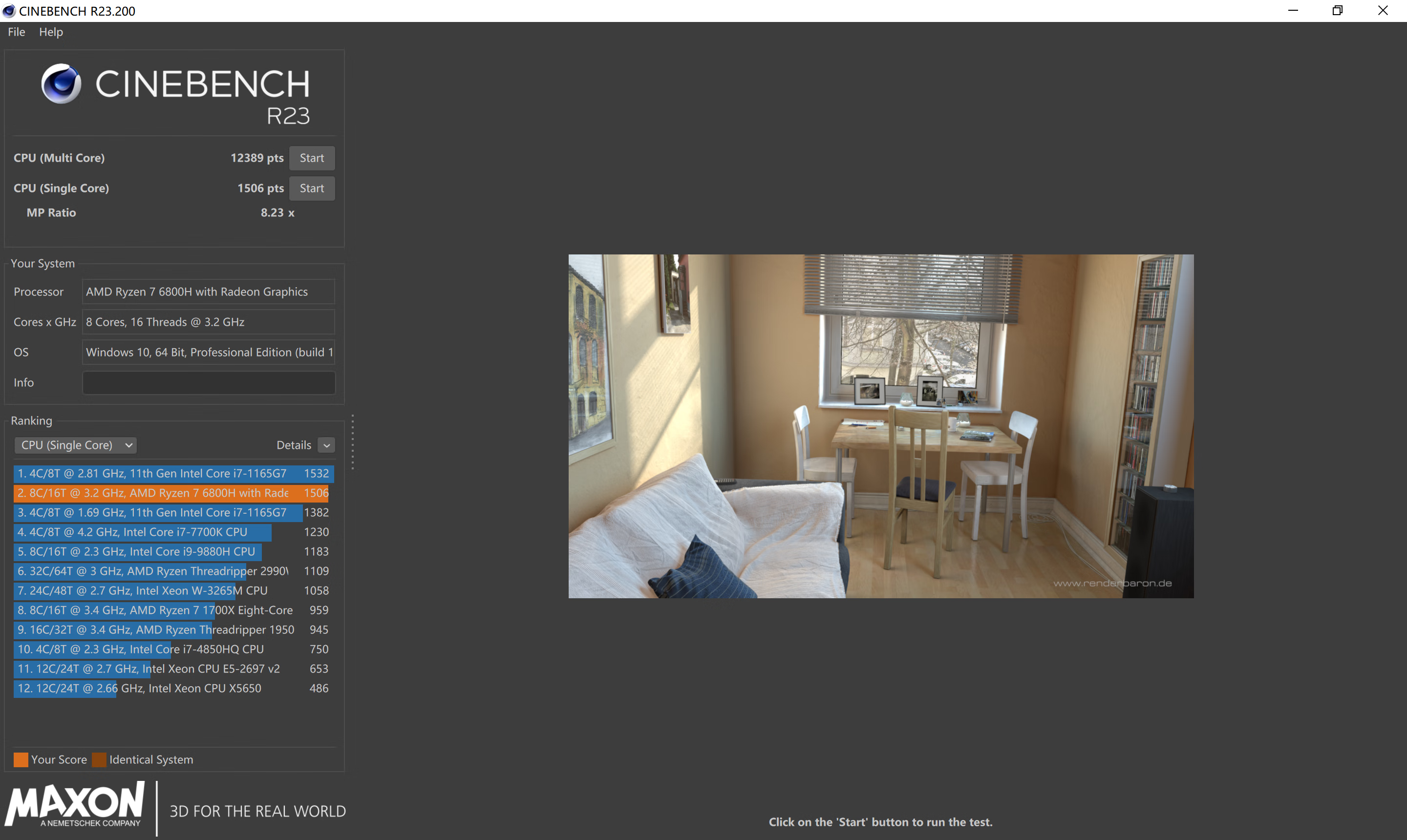
r23的话<br>
<img src="https://img10.360buyimg.com/ott/jfs/t1/137560/30/29937/300355/632da65bE294c15f1/7b29ae9e4462a28a.png" alt="1663936081404.png" loading="lazy"><br>
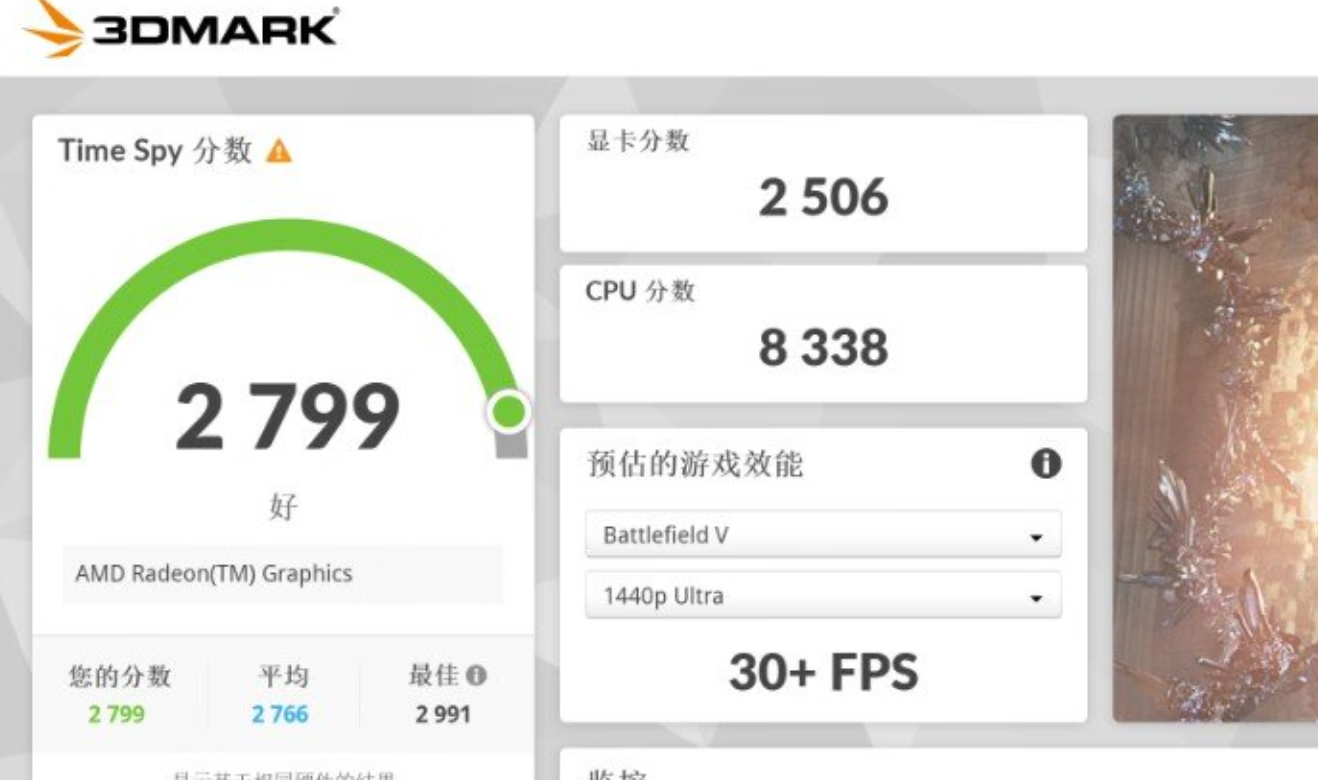
6800H的核显很强的，time spy 2506分，媲美1050ti<br>
<img src="https://img10.360buyimg.com/ott/jfs/t1/186644/3/27764/57172/632da69cE5525ec96/ae548569f5b5f8c2.png" alt="1663936151392.png" loading="lazy"><br>
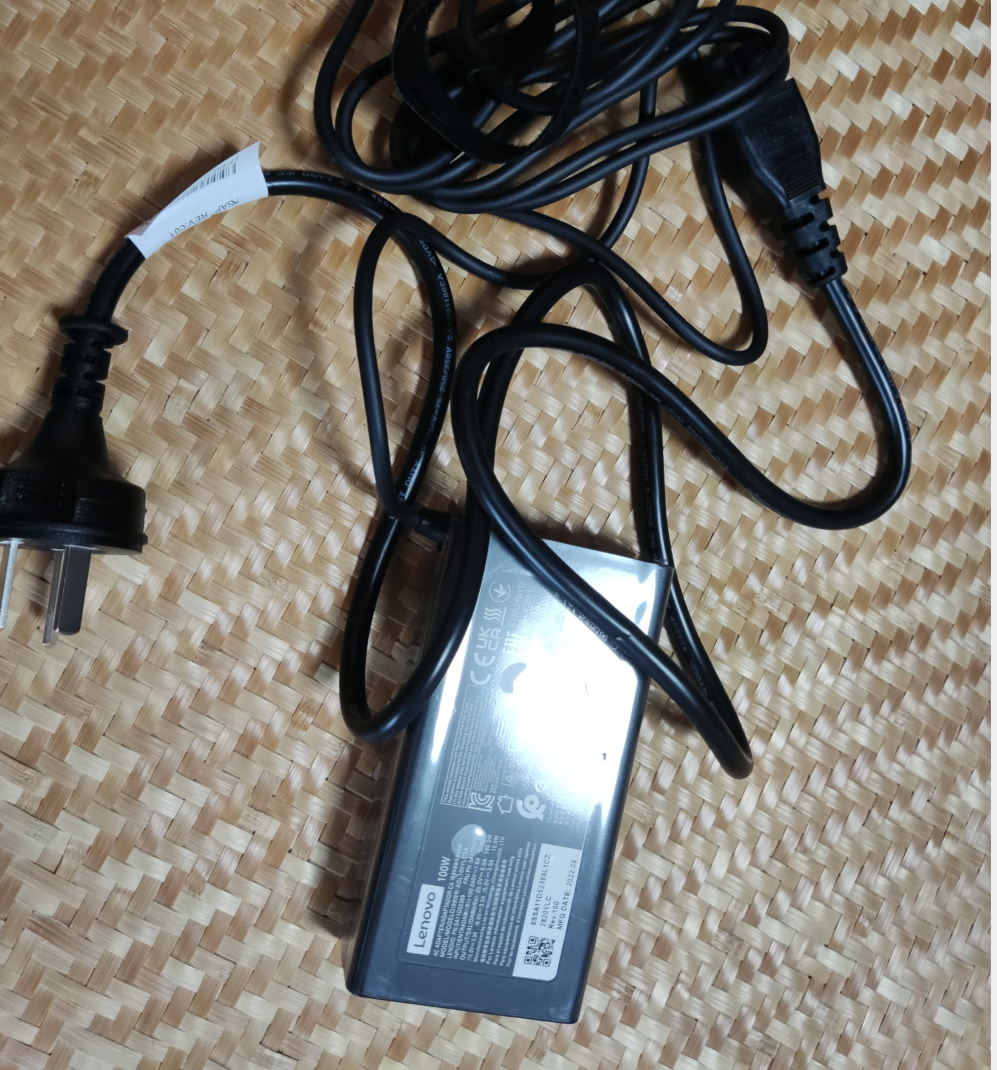
笔记本原装的充电头是个大板砖<br>
<img src="https://img10.360buyimg.com/ott/jfs/t1/85836/21/29696/204133/632da6bcEdc51e020/3f6e7f5dfe25cdeb.png" alt="1663936181992.png" loading="lazy"><br>
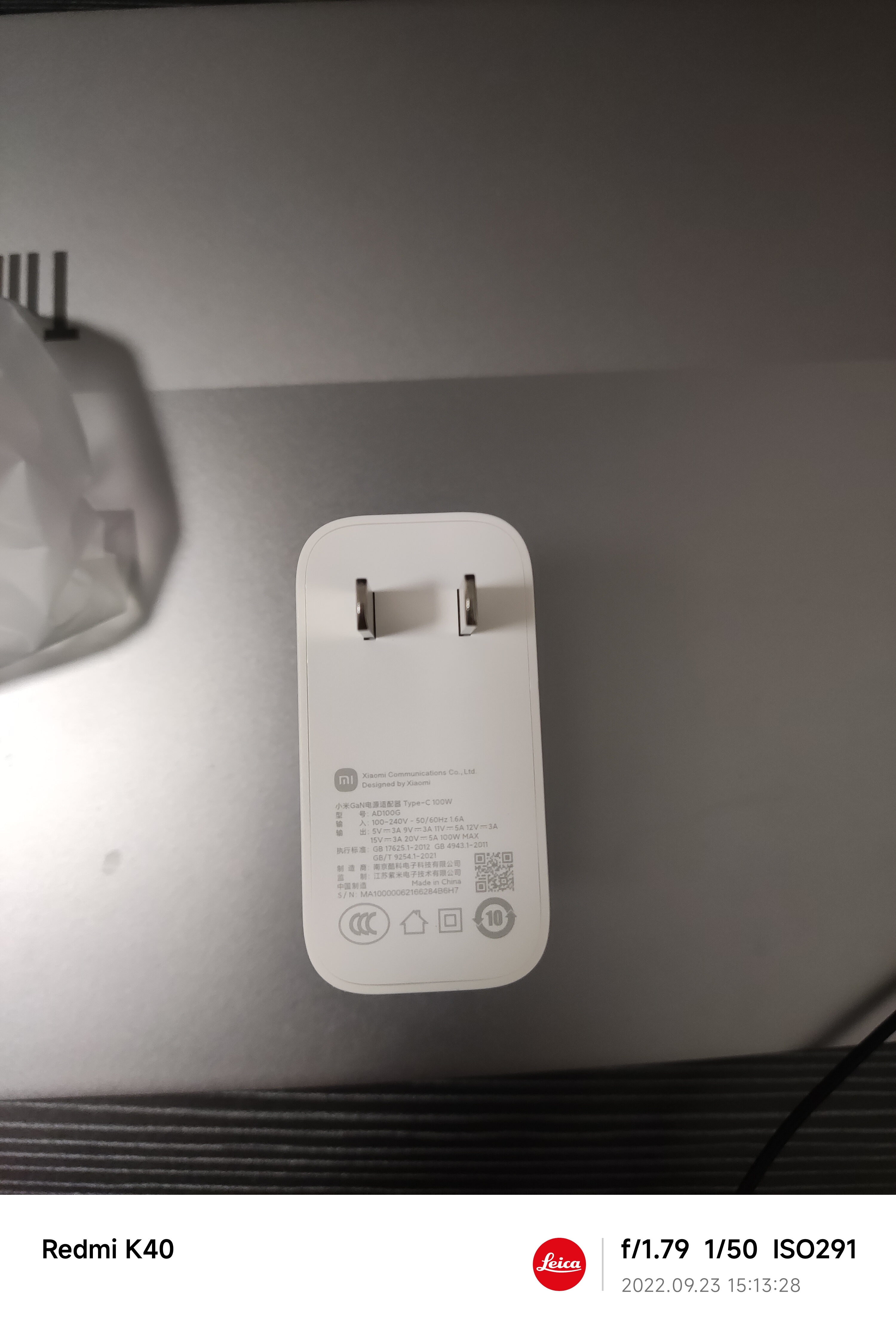
我换成了小米ad100g氮化镓头了，同样100w，小了很多很多，还支持小米的55w的pps，就是不太好买，去小米售后买的<br>
<img src="https://img10.360buyimg.com/ott/jfs/t1/86987/24/30706/4133487/632da6d4E1a40ae4c/527345f6d1e18e3f.jpg" alt="1663936203587.jpg" loading="lazy"><br>
后面再把螃蟹网卡换成ax200或者ax210就完美了<br>
固态的话支持两个m.2，后面看情况再加吧<br>
详细的开箱可以看所长的视频https://www.bilibili.com/video/av216059622/</p>
]]></content>
    </entry>
    <entry>
        <title type="html"><![CDATA[acme.sh申请证书]]></title>
        <id>https://www.kaino3.com/20220601/</id>
        <link href="https://www.kaino3.com/20220601/">
        </link>
        <updated>2022-05-31T20:50:00.000Z</updated>
        <content type="html"><![CDATA[<p>1安装acme.sh</p>
<pre><code>curl https://get.acme.sh | sh
</code></pre>
<p>如果报错，安装socat</p>
<pre><code>apt install socat -y
</code></pre>
<p>2确认acme.sh已经安装，显示acme.sh版本</p>
<pre><code>acme.sh -v
</code></pre>
<p>3切换默认ca<br>
切换成Let's encrypt</p>
<pre><code>acme.sh --set-default-ca --server letsencrypt
</code></pre>
<p>切换成gcp的</p>
<pre><code>acme.sh --set-default-ca --server google
</code></pre>
<p>切换成zerossl</p>
<pre><code>acme.sh --set-default-ca  --server zerossl
</code></pre>
<p>3设置api<br>
腾讯云dnspod api获取地址<br>
https://console.dnspod.cn/account/token/apikey</p>
<pre><code>export DP_Id=&quot;123456&quot;
export DP_Key=&quot;abcdefg&quot;
</code></pre>
<p>阿里云dns api</p>
<pre><code>export Ali_Key=&quot;AccessKeyId&quot;
export Ali_Secret=&quot;AccessKeySecret&quot;
</code></pre>
<p>4申请gcp证书的api<br>
https://console.cloud.google.com/</p>
<pre><code>cloudshell
gcloud beta publicca external-account-keys create
</code></pre>
<pre><code>acme.sh --register-account --server google -m xxx@gmail.com 
--eab-hmac-key 申请到b64MacKey
--eab-kid 申请到的keyId]
</code></pre>
<p>5申请证书<br>
阿里云</p>
<pre><code>acme.sh --issue --dns dns_ali -d kaino3.com -d *.kaino3.com
</code></pre>
<p>dnspod</p>
<pre><code>acme.sh --issue --dns dns_dp -d kaino3.com -d *.kaino3.com
</code></pre>
]]></content>
    </entry>
    <entry>
        <title type="html"><![CDATA[K40开箱]]></title>
        <id>https://www.kaino3.com/20210618/</id>
        <link href="https://www.kaino3.com/20210618/">
        </link>
        <updated>2021-06-18T12:27:58.000Z</updated>
        <content type="html"><![CDATA[<p>用了快十天了，来做个开箱<br>
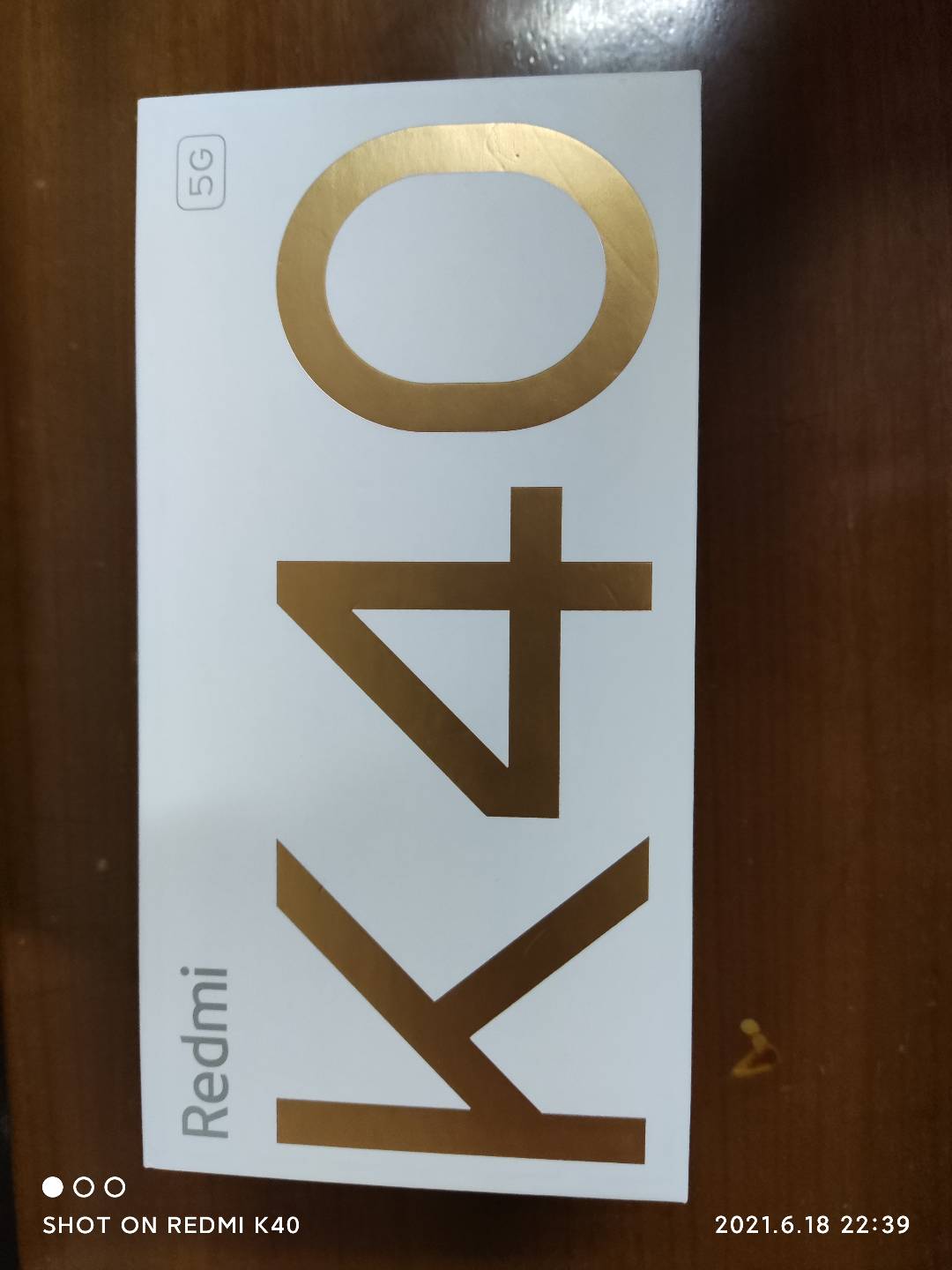
盒子本身<br>
<img src="https://img10.360buyimg.com/babel/jfs/t1/221947/31/13979/77861/627bf94fE1dd994e7/d44264631e4ee3b8.jpg" alt="1636188498923.jpg" loading="lazy"><br>
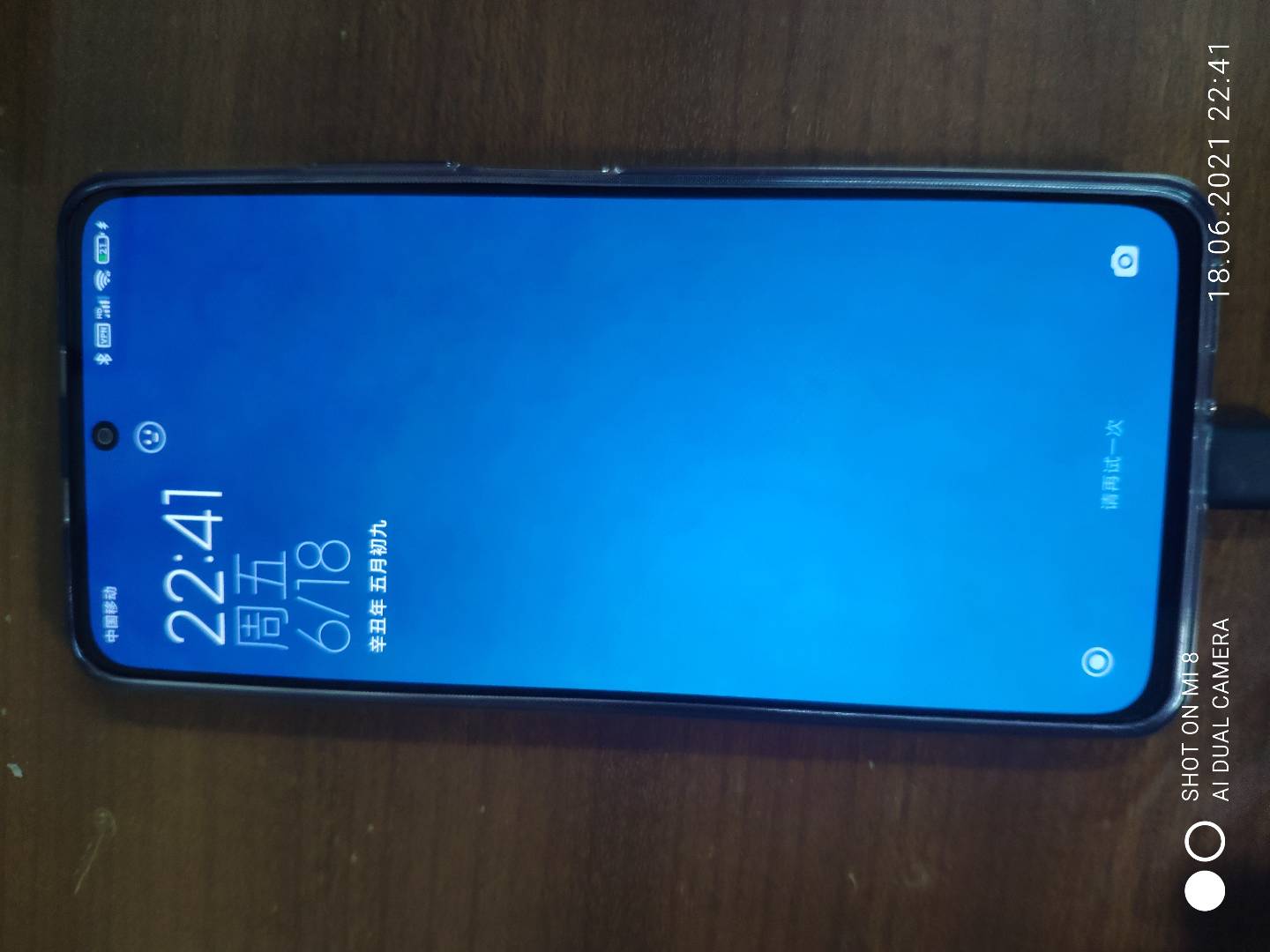
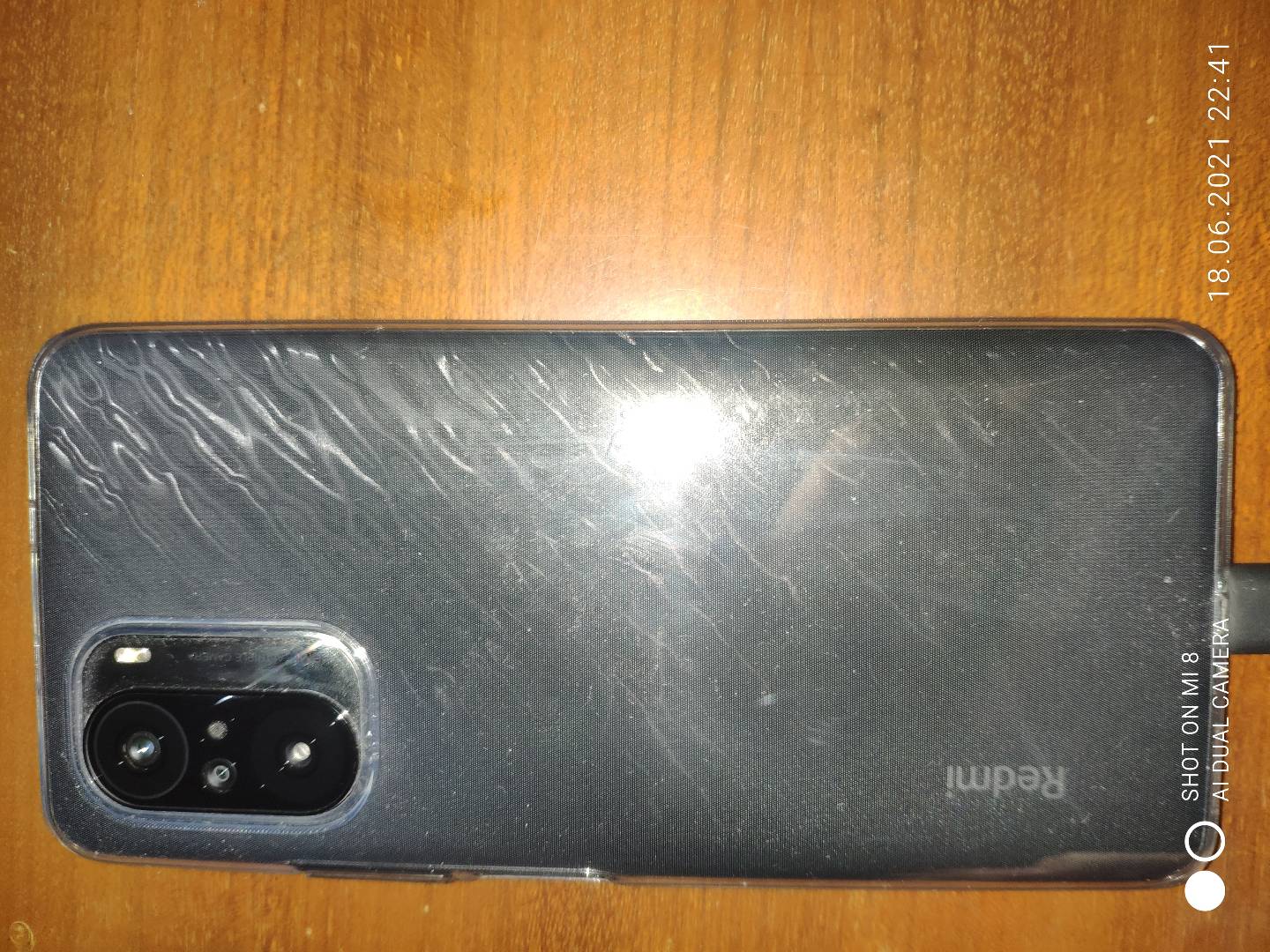
手机前面和背面<br>
<img src="https://img10.360buyimg.com/babel/jfs/t1/217488/24/20335/83649/62a95ca6E899fd457/72982fa9e2943ca1.jpg" alt="3190306_1636188606.jpg" loading="lazy"><br>
<img src="https://img10.360buyimg.com/babel/jfs/t1/183115/18/24614/314733/62a95cc5Ea5c5cae1/6a01edff6a2bd674.jpg" alt="2513195_1636188638.jpg" loading="lazy"><br>
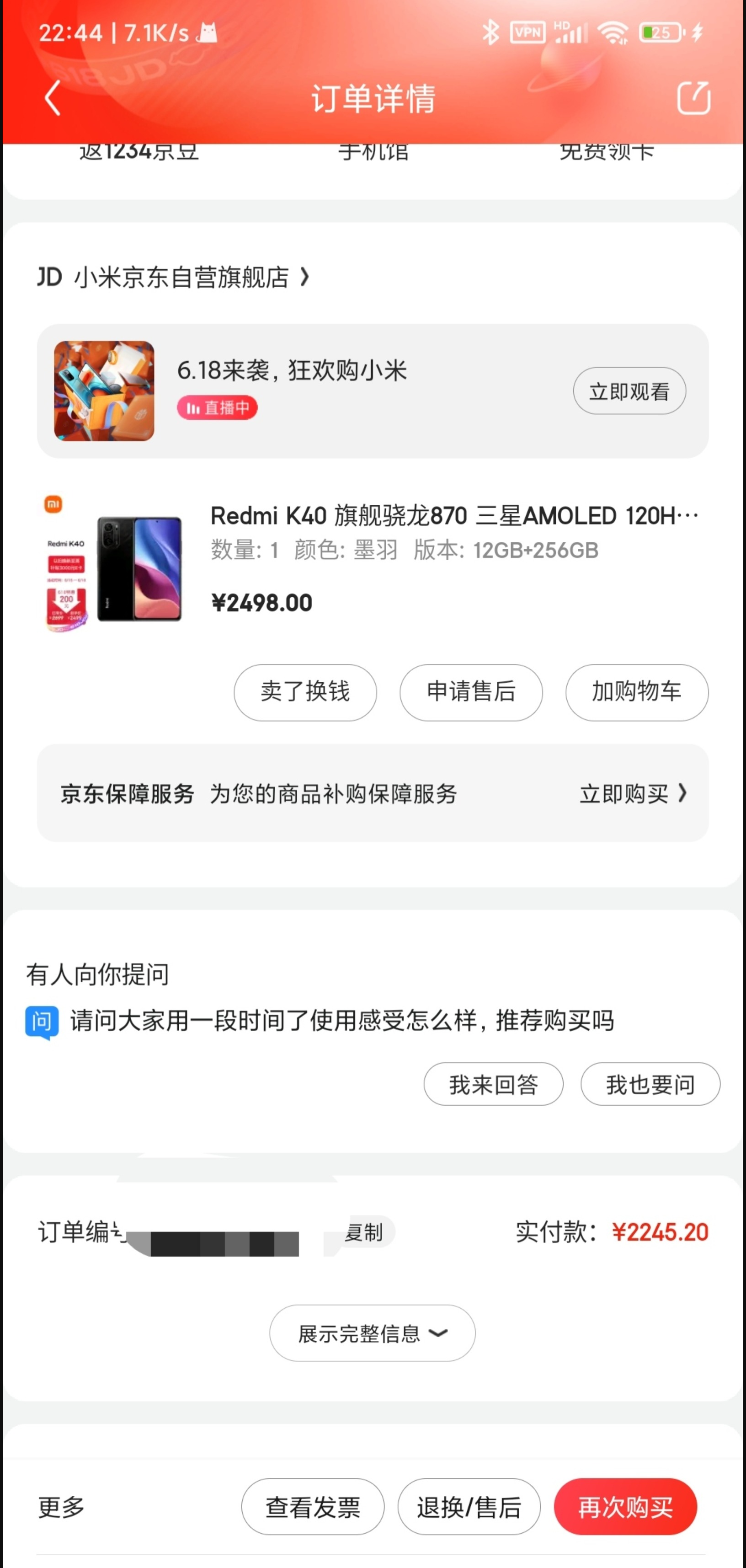
今年888翻车了，本来想把我的米8换成11的，但是观望了下，买个K40也不错，米8其实也不卡，但是他没有5G，它没有高刷，于是换了吧<br>
刚好上周九折券买的2499用完九折券2249，然后后面有张不知道啥的100的券，找客服保价要了100块钱的京豆，实际到手2149 12+256的，真的够香了<br>
<img src="https://img10.360buyimg.com/babel/jfs/t1/219456/35/20336/1814023/62a95becE0657a599/c8d6f5cd4febd179.png" alt="2840637_1636188547.jpg" loading="lazy"><br>
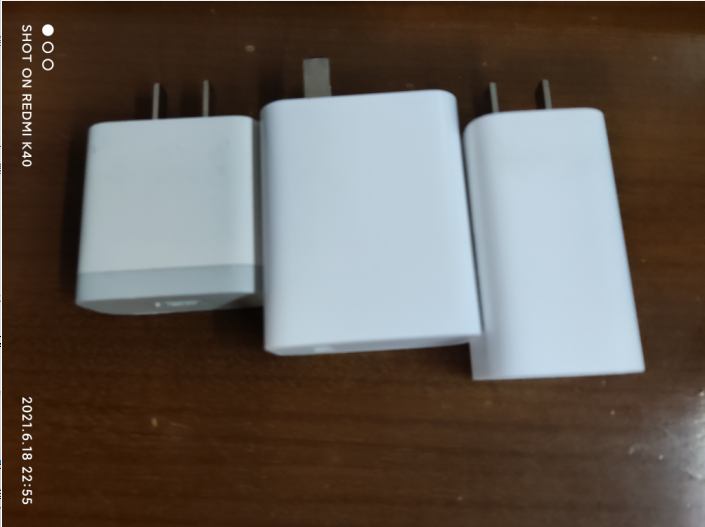
充电头，从左往右，小米8的18W,K40送的33W头，小米65W氮化镓<br>
<img src="https://img10.360buyimg.com/babel/jfs/t1/199327/3/24337/489983/62a95cfeE4e06c187/20bc7118f9652d65.png" alt="3702334_1636188223.jpg" loading="lazy"><br>
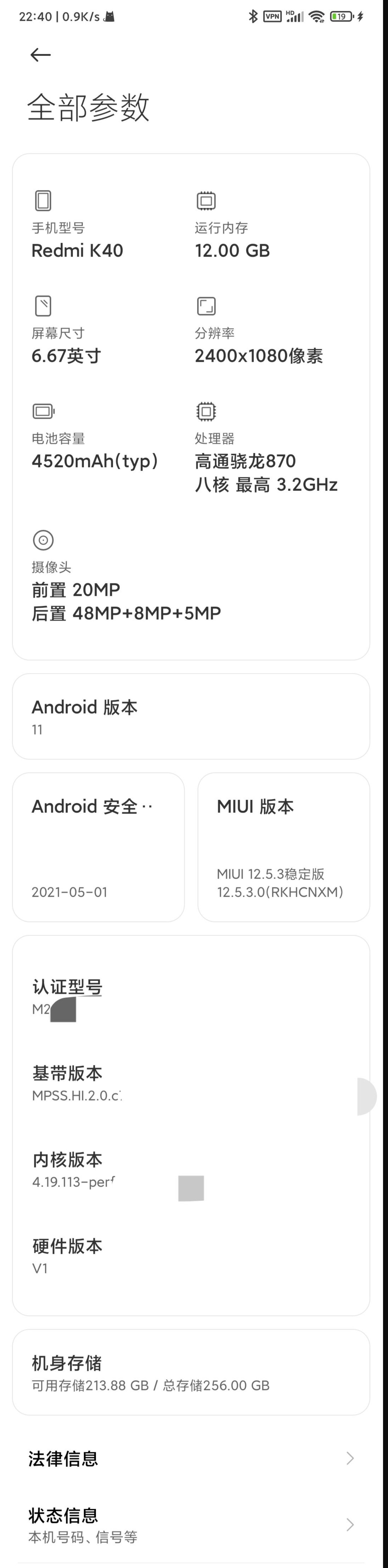
手机的参数配置<br>
<img src="https://img10.360buyimg.com/babel/jfs/t1/197403/10/24627/1491764/62a95d10E099febe5/6b6f07184cddadd8.png" alt="2667226_1636188438.jpg" loading="lazy"><br>
娱乐兔跑了个分，70万出头，米8 当时30万出头<br>
<img src="https://img10.360buyimg.com/babel/jfs/t1/214979/20/19761/2109237/62a95d28Eaa45da54/cd38875a5f0b5edf.png" alt="5542951_1636188341.jpg" loading="lazy"></p>
]]></content>
    </entry>
    <entry>
        <title type="html"><![CDATA[移动nfc-sim公交卡分享]]></title>
        <id>https://www.kaino3.com/20210310/</id>
        <link href="https://www.kaino3.com/20210310/">
        </link>
        <updated>2021-03-10T12:26:24.000Z</updated>
        <content type="html"><![CDATA[<p><img src="https://img10.360buyimg.com/babel/jfs/t1/118027/17/26293/57326/62a95e6eE6287cb17/7f333e8c9a035936.jpg" alt="image.png" loading="lazy"><br>
移动去年整了个超级sim卡的，比起以前的nfc-sim卡只能刷公交强大很多，还能拿来当门禁卡，U盾之类的功能，但是这些不提，最有用的其实还是公交卡功能电信和联通应该也有类似的<br>
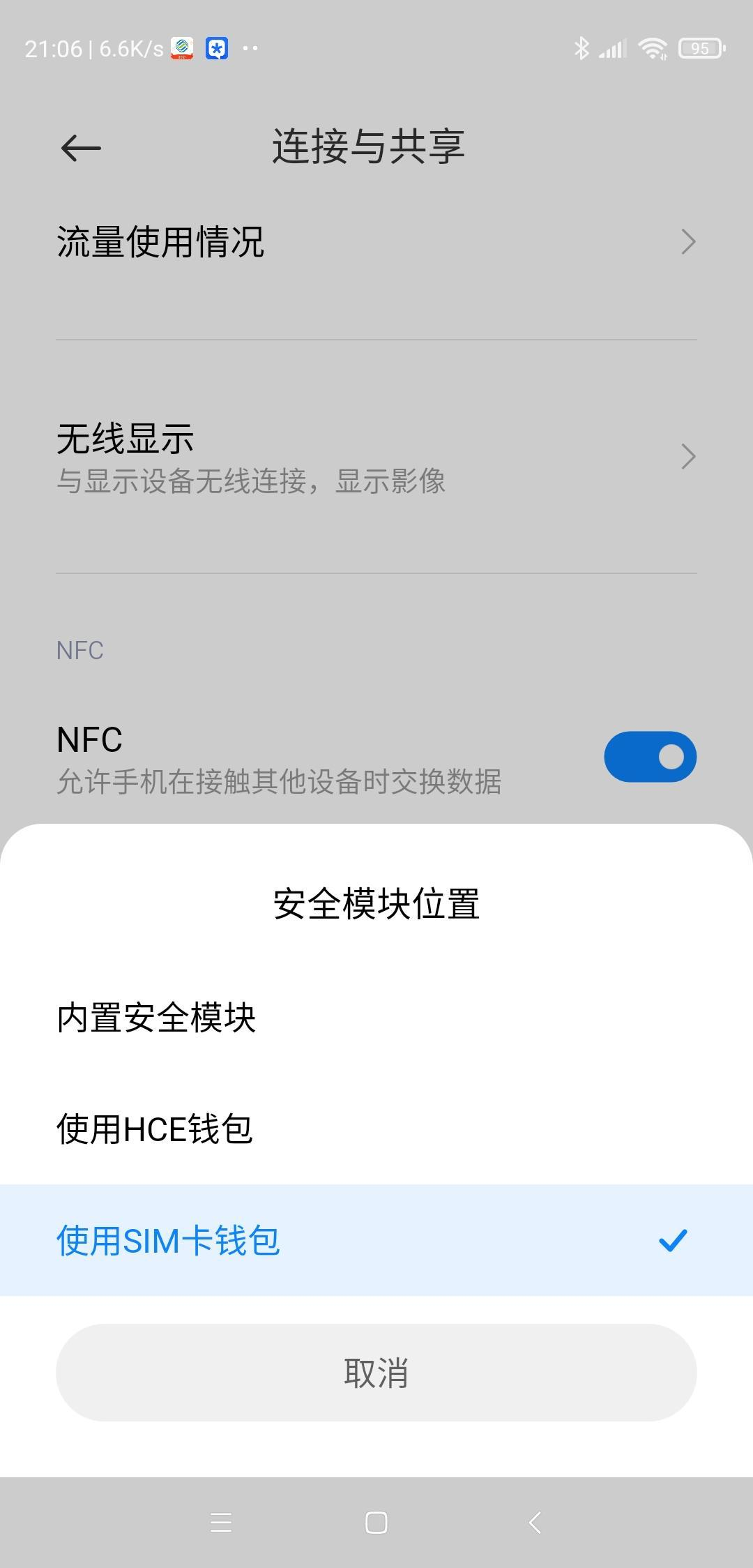
支持条件，首先要手机支持nfc然后还要支持nfc-sim.可以在设置里面启动了，先确定下支持不支持，有些手机更新完了不支持，更新前支持，酷安上有人就遇到过的，先去确定下<br>
<img src="https://img10.360buyimg.com/babel/jfs/t1/31122/13/17114/362665/62a95e93E1120c575/848709e27ac84e84.png" alt="image.png" loading="lazy"><br>
大概支持的手机的话，三星除了国行系统之外的，用不了国行Samsung pay，LG和索尼的洋垃圾，或者国行不支持公交卡的，比方说索尼的国行的马克兔还有最近摩托的edge s之类的，或者小米的刷了包之后用不了自带钱包的，真的很有用，iPhone用户的话不支持<br>
申请的话，可以线下营业厅，具体哪家支持的话打电话先问下<br>
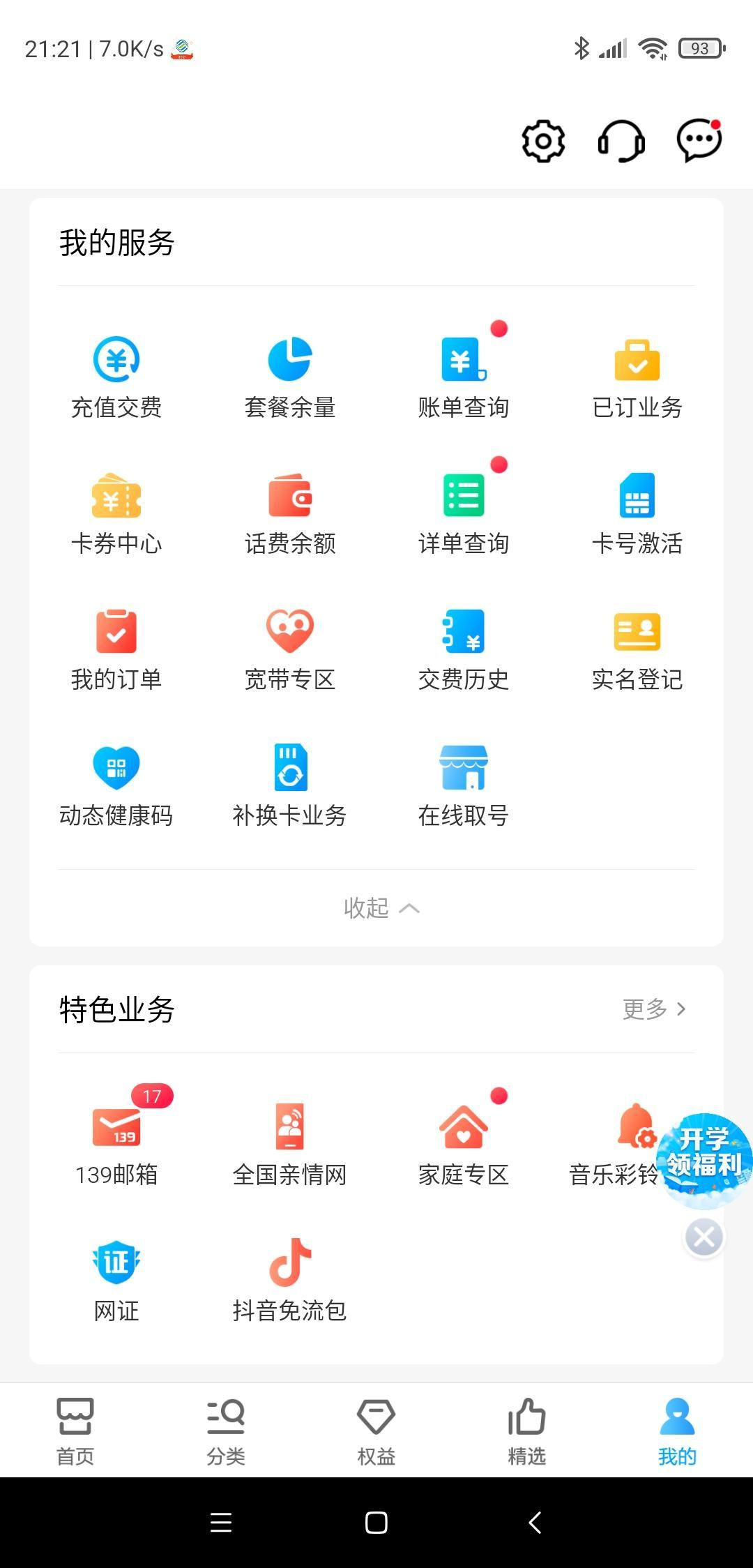
我是在线申请的，中国移动的手机app里面就可以申请，点击我的-补换卡业务，然后在里面申请，选择超级SIM卡，输入你的手机号，然后还要提供身份证还有刷脸实名认证的，然后就寄给你了<br>
<img src="https://img10.360buyimg.com/babel/jfs/t1/196608/21/26217/690933/62a95ebcEd47ae2cd/01785c17e5591df5.png" alt="7316579_1636187664.jpg" loading="lazy"><br>
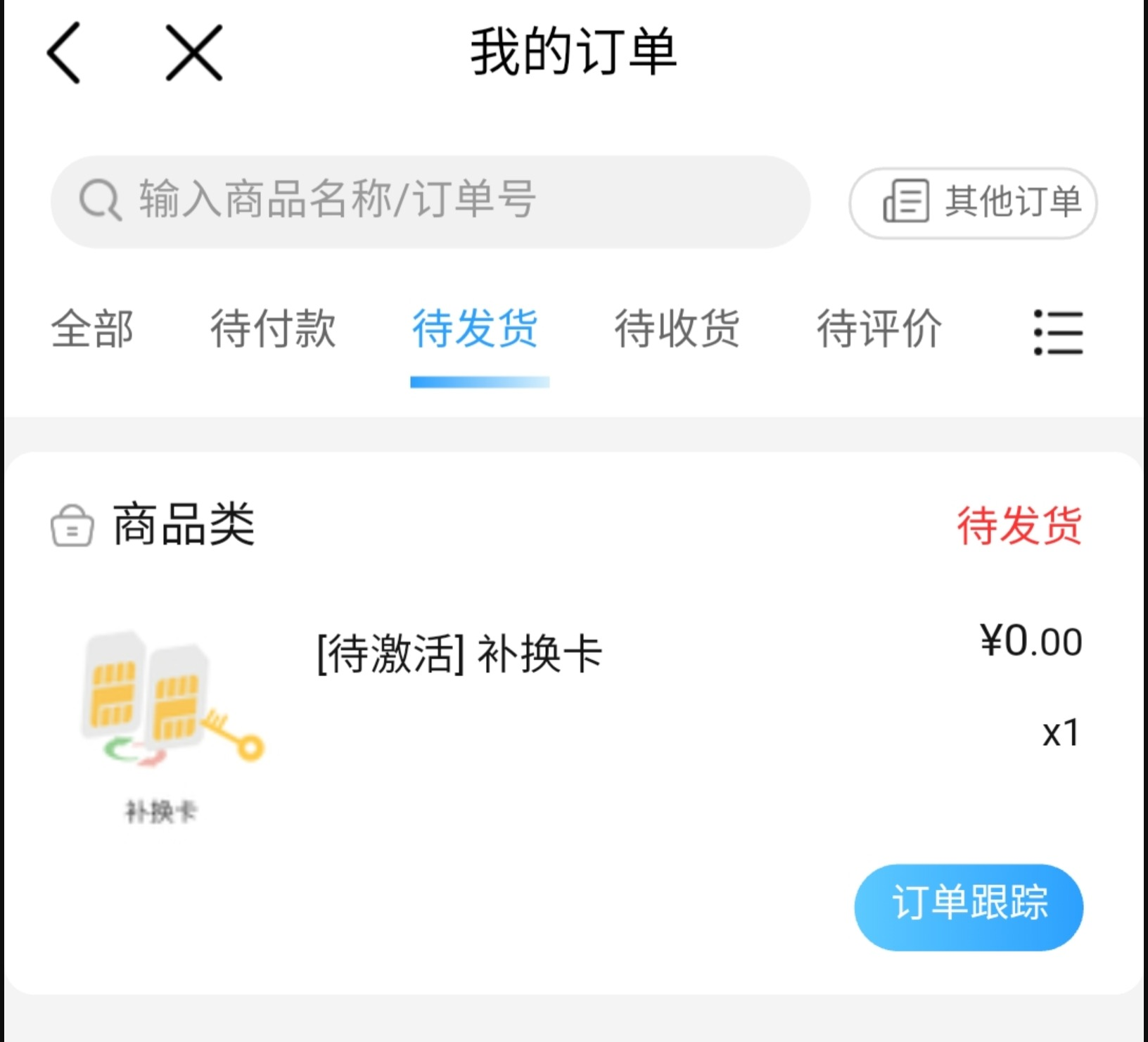
我的3月1日申请的，app里面显示还是未发货，但是我前天收到了，是个中通的小信封，我当时收到一脸懵逼，就很神奇，运费还有制卡费全是免费的，<br>
<img src="https://img10.360buyimg.com/babel/jfs/t1/17483/10/17274/480509/62a95ed1Ee815252f/aba9512455815ef7.png" alt="3663840_1636187827.jpg" loading="lazy"><br>
收到后就在手机app里面用补换卡业务里面激活，记得先别插进去，在外面激活了再插进去，放在sim卡1<br>
然后在手机设置里面选择nfc-sim卡，手机上下个和包支付，在里面划到我的里面，有个我的nfc卡，然后在里面激活，我领的是小蓝卡，因为有活动冲50送50，分5个月返还话费，真香<br>
刷卡的话就和你小米系统自带的钱包一样用，具体支持的范围，我开的小蓝卡的话支持交通联合的地方都是可以用的</p>
]]></content>
    </entry>
    <entry>
        <title type="html"><![CDATA[AMD水泥硅脂]]></title>
        <id>https://www.kaino3.com/20210301/</id>
        <link href="https://www.kaino3.com/20210301/">
        </link>
        <updated>2021-03-01T12:25:00.000Z</updated>
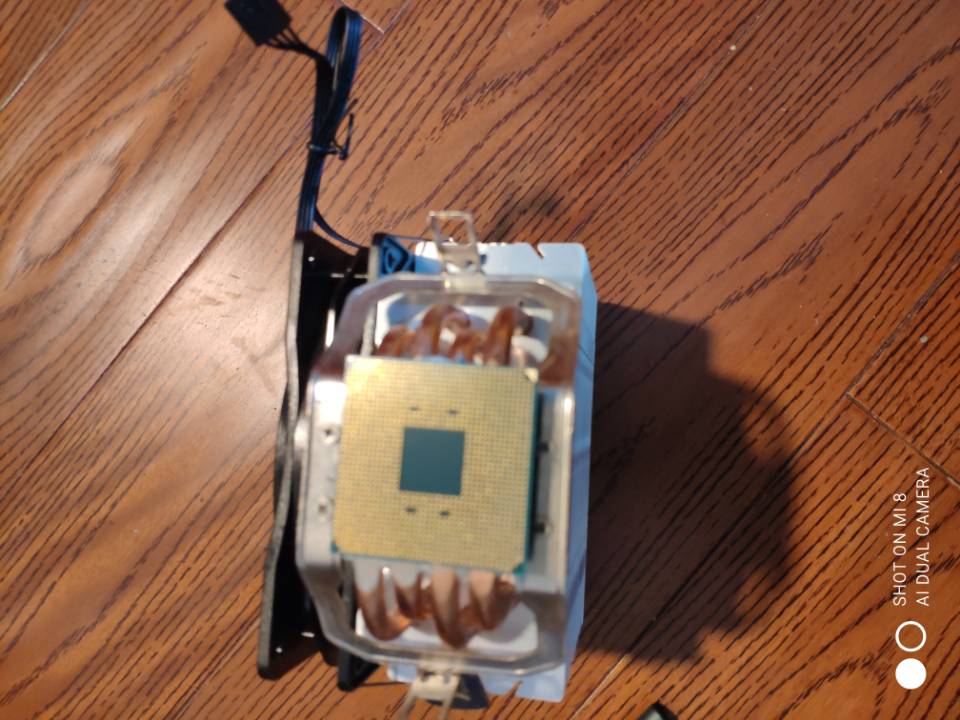
        <content type="html"><![CDATA[<p>上个月1800把我用了两年的rx580满血版出给矿老板，1300买的，白用两年，不过现在好像涨到都快2300了，我好像出早了，然后用撑了用笔记本用了几天，后面干脆又把我的2600给600顺丰包邮出给坛友了，然后闲鱼650收了个2400G，然后用到了前几天想清下灰，我当时也不知道脑子怎么一热，想清灰的，然后拆的时候，忘记热机了，因为前几次我拆的时候也没热机，然后遇到了喜闻乐见的场景，拔出散热器带出cpu，用的硅脂是我朋友装机用剩下的水泥tf7，之前都是mx4，结果出事了吧，真的是常在河边走哪有不湿鞋的，由你奸似鬼，吃了老娘的洗脚水<br>
贴吧甚至见到水泥硅脂有把2400G给开盖了的<br>
<img src="https://img10.360buyimg.com/babel/jfs/t1/49918/16/17793/93298/627bf77aEfdb970db/48709f95e0d38711.jpg" alt="image.png" loading="lazy"><br>
我当时看了下好像歪了3个断了1个，然后想我死了，我就又收了个200ge用了几天，然后某宝上找了个华强北的修针脚的，寄给他修好了，老板收了我60，然后反了我20，没断针，估计是我眼睛看花了当时，反正不管怎么说，这次来回加上运费花了快50了，真的50买点肉吃我不香吗<br>
以后AMD的cpu拆的时候一定要热机</p>
]]></content>
    </entry>
    <entry>
        <title type="html"><![CDATA[小米65W氮化镓开箱]]></title>
        <id>https://www.kaino3.com/20200912/</id>
        <link href="https://www.kaino3.com/20200912/">
        </link>
        <updated>2020-09-12T12:23:17.000Z</updated>
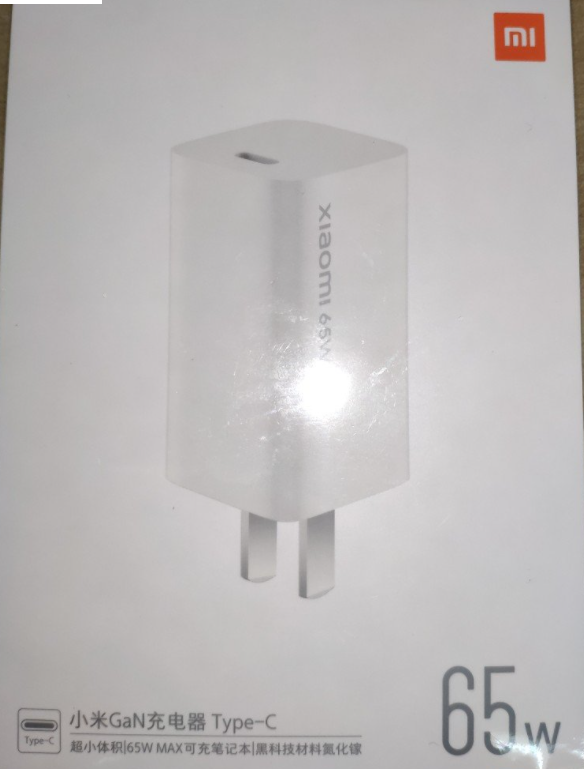
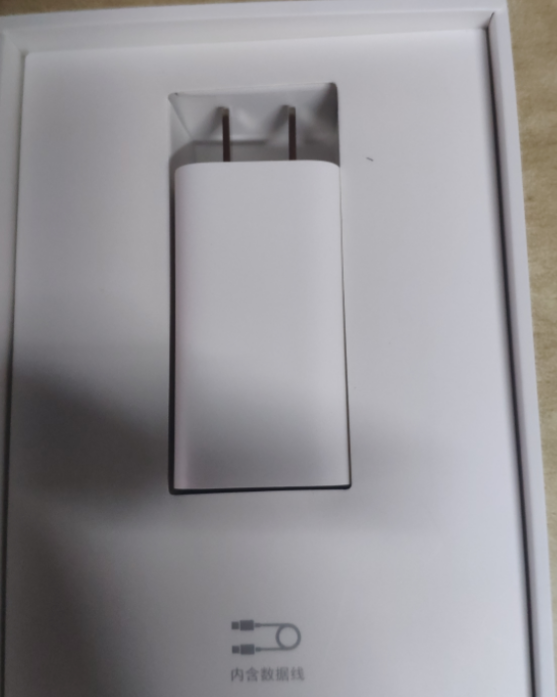
        <content type="html"><![CDATA[<p>前几天狗东自营65W氮化镓打折，才123，冲动之下买了，先是正面和背面，之前因为某些原因下架了，现在修复了又上架了<br>
<img src="https://img10.360buyimg.com/babel/jfs/t1/213158/23/20478/538105/62a95f28E183c1e31/bb085857362523e0.png" alt="盒子" loading="lazy"></p>
<p>然后打开包装，头<br>
<img src="https://img10.360buyimg.com/babel/jfs/t1/193219/37/25804/476984/62a95f1eEd2b02484/b6605f08b77c361d.png" alt="头" loading="lazy"><br>
还有个1米数据线<br>
<img src="https://img10.360buyimg.com/babel/jfs/t1/75430/40/19501/726740/62a95f1eE7c28f424/9d0edcf715a8e5b9.png" alt="线" loading="lazy"><br>
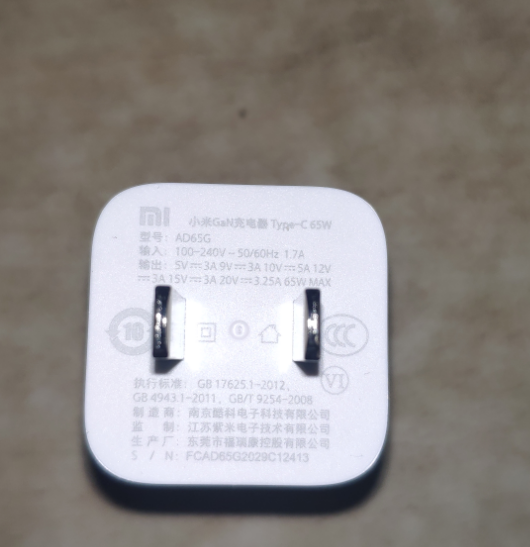
充电头本体支持5V3A,9V3A,10V5A,12V3A,15V3A,20V3.25A最大65W输出<br>
<img src="https://img10.360buyimg.com/babel/jfs/t1/76893/30/20115/419072/62a95f1cEd6059b36/e9058cefe9ae092e.png" alt="参数" loading="lazy"><br>
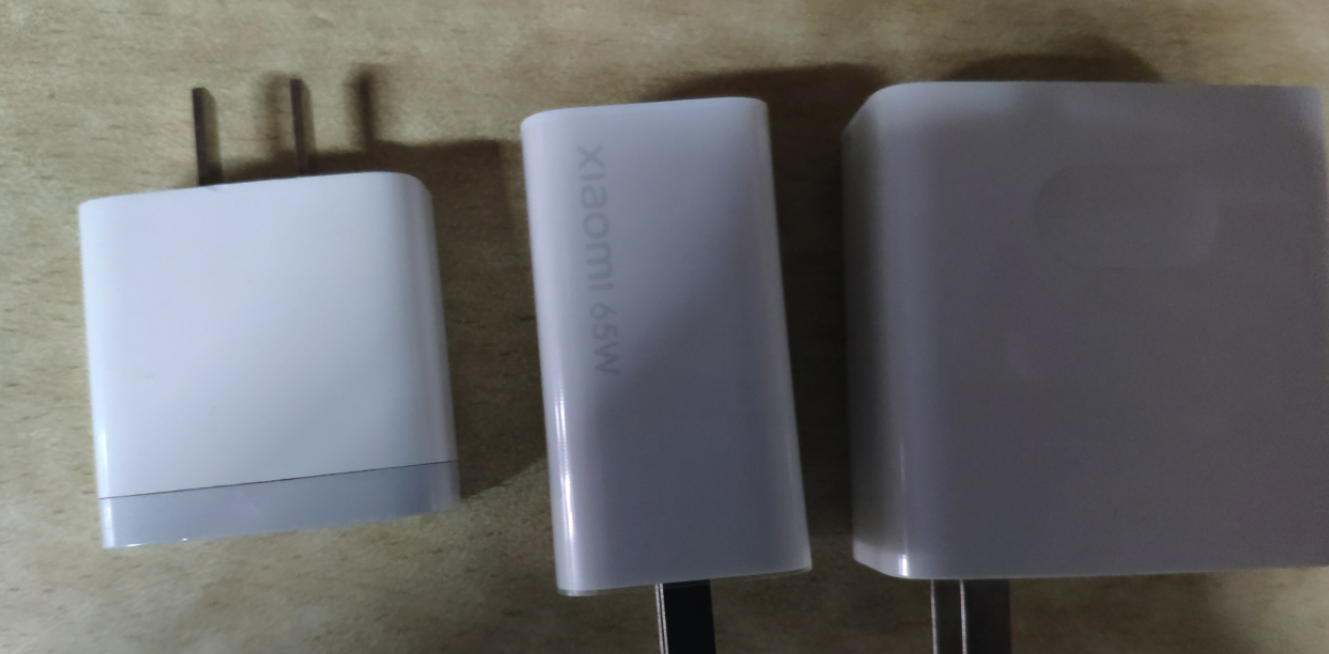
对比下我手头的，从左到右小米8的18W，65W氮化镓,魔法本的65W头，这个真的小<br>
<img src="https://img10.360buyimg.com/babel/jfs/t1/207087/35/22938/1555339/62a95f22E0605d3c0/2968825f71e71d46.png" alt="对比" loading="lazy"></p>
]]></content>
    </entry>
</feed>